

Recognise the order type
Open Purchase → Proposed orders and hover over an icon in the Type column to see its label:
- Backorder: advice for an immediate requirement associated with backorders or negative stock.
- Lost sales: emergency advice intended to reduce the risk of products selling out.
- Preponed: a planned order brought forward from a later order moment.
Type explains the kind of advice. Status and Planned date explain when the order is due. An overdue status is not an order type, and a future order is not automatically a preponed order.
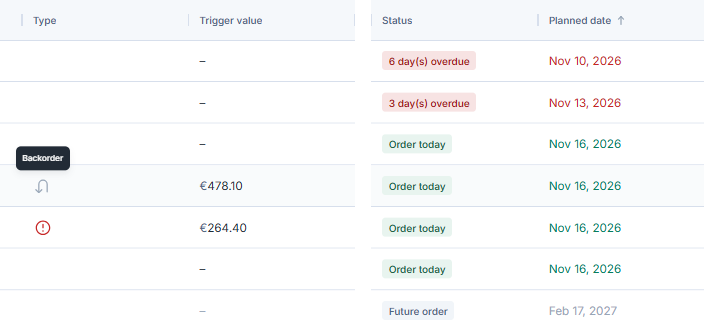
Backorder is the order type; Order today is its timing status. The two column groups are shown side by side.
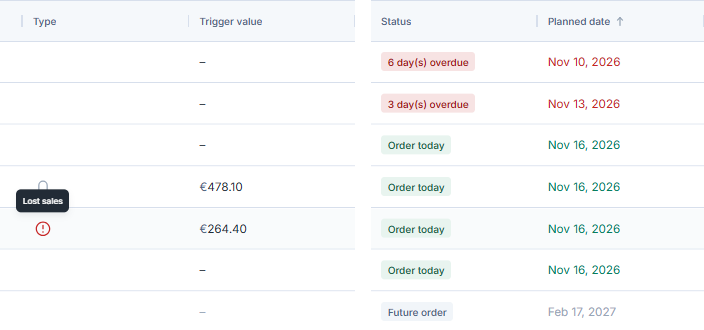
Lost sales identifies emergency advice. The status and date remain separate.

Preponed — a planned order brought forward.
Emergency advice and Avoid lost sales
Emergency advice responds to an urgent projected shortage. Your available and incoming stock may not cover demand until the next suitable replenishment opportunity, even when physical stock is still above zero.
To review the supplier's settings, open Suppliers, select the supplier and open Agenda → Emergency Orders. Avoid lost sales controls additional orders intended to respond when products are about to sell out. Check its On/Off state and the displayed Order value rule.
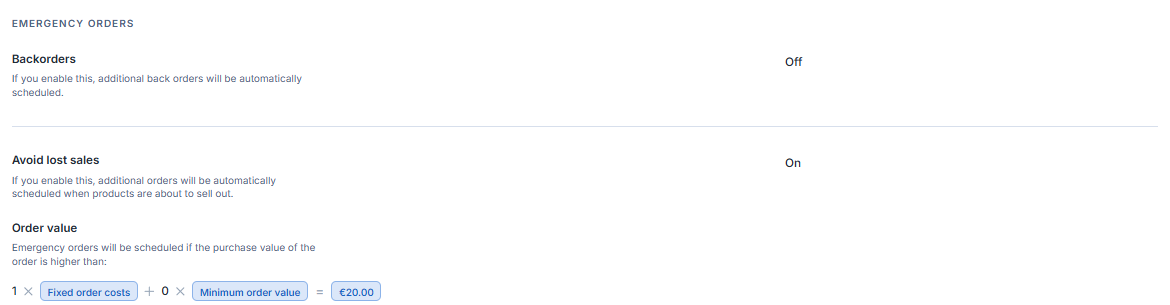
Example: Avoid lost sales is On and Backorders is Off. The displayed order-value threshold is €20.
Here, the rule is 1 × Fixed order costs + 0 × Minimum order value = €20. It is a monetary threshold, not the number of units to purchase. These are example settings, not default values. If the fixed order costs change from €20 to €30 while the multipliers stay at 1 and 0, the displayed threshold becomes 1 × €30 + 0 × Minimum order value = €30. You are changing the minimum order value for this reaction, not a unit quantity. Enabling the option alone does not guarantee an order: planning and supplier-product conditions still apply.
Preponed advice: an order brought forward
Preponing brings a regular planned order forward when waiting would risk lost sales and advancing the order is worthwhile. Avoid lost sales must be On for the supplier. Backorders alone cannot produce a preponed order. Preponing does not bypass supplier-product availability, minimum order quantity (MOQ), lot size or Stock availability constraints.
The earliest open regular order moment must be after today. Skipped, deleted, already placed and remotely used moments do not count in this check. An unplaced regular moment today or an overdue one blocks an additional early-order recommendation for that supplier, even if another regular moment is in the future. A supplier with no eligible future regular moment, or an unplaced emergency moment today, is also excluded.
A manual agenda prevents preponing. It can still allow a separate emergency recommendation when the relevant conditions pass. Unlike a manual agenda, turning the webshop's Lost sales setting Off is not by itself enough to prevent preponing: if webshop Backorders is On, the calculation can still consider suppliers whose own Avoid lost sales is On. This emergency planning is not available in Optiply Lite.
Optiply compares bringing the regular order forward with placing a separate lost-sales emergency order. The chosen option must have a positive expected benefit after the applicable costs and meet its order-value rule. If both qualify, the more profitable option wins; an equal-profit tie goes to the emergency order. Zero fixed order costs are not an absolute block: a larger preponed order can still qualify when the smaller emergency order falls below the order-value threshold.
For example, your next planned supplier order is on Thursday. If waiting until Thursday would leave insufficient stock coverage, the supplier's Avoid lost sales is On and the other conditions pass, Optiply can recommend bringing that order forward. With a manual agenda, it will not bring that regular order forward; a separate emergency order remains possible. This is a planning recommendation, not an automatically placed purchase order.
Backorders and negative stock
Backorder advice addresses an immediate gap rather than normal forecast replenishment alone. Incoming stock, supplier availability, product-supplier links, phase-out state and the planning target can affect how much of that gap is covered.
Open the supplier's Agenda → Emergency Orders to review Backorders and its Order value rule.
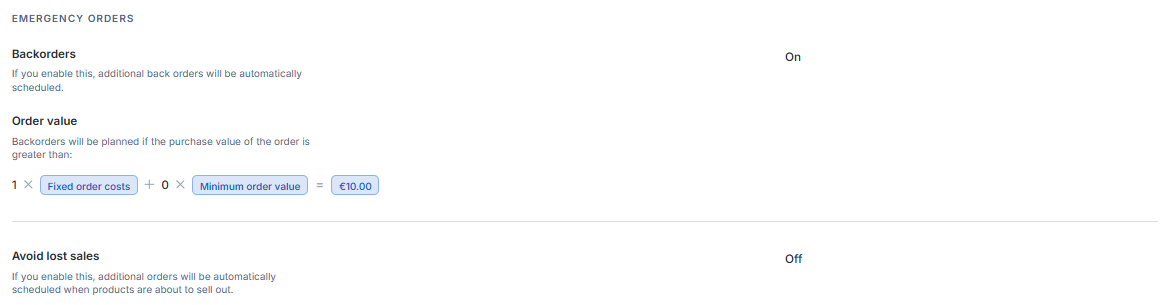
Example: Backorders is On. The displayed threshold is 1 × Fixed order costs + 0 × Minimum order value = €10.
As in the lost-sales example, this is an order-value threshold, not a unit quantity or a default. Negative stock alone does not guarantee the same recommendation for every product.
What affects the advised quantity?
Current stock, incoming stock, demand, promotions and order constraints all help explain the quantity. Review MOQ, lot size and supplier stock separately from the order's timing.
Stock availability rules depend on the calculation used for the recommendation. When supplier free stock limits the quantity before MOQ and lot-size rounding, later rounding can increase the final quantity beyond a positive supplier-stock value. Other calculations apply the Stock availability cap to the final quantity instead. The order type alone does not tell you which calculation applies.
A supplied zero suppresses the quantity; a missing limit means no Stock availability cap, not a zero cap. These rules are not a stock reservation or a blanket restriction on manually entered orders. See Use supplier stock and Stock availability for the distinction, and contact Support if the calculation behind a recommendation is unclear.
What to check next
- Why now? Review lead time, reorder period and any manual agenda.
- Why this quantity? Check current and incoming stock, recent demand, promotions, planning levels, MOQ, lot size and supplier stock.
- Why no preponed advice? Check the supplier's Avoid lost sales, Manual agenda, earliest open regular moment and any unplaced emergency moment today. Available and incoming stock may still cover demand through lead time plus one day, so there is no urgent lost-sales contribution yet. Also check that the supplier is not ignored or deleted, the products are enabled and not ignored, their supplier links are active, and the supplier has usable planning values. Products marked Not being bought contribute no forecast demand to this lost-sales calculation.
If the recommendation is still unclear, contact Optiply Support with the product, supplier, advice date and the values shown in Optiply.
For more detail, see Backorders and Supplier lead time and product lead time.