

Recalculation can overwrite manual changes to the proposal. Check those changes before you continue.
Before you adjust a proposed order
- Open the correct webshop, supplier and proposed order in Purchase.
- Have Purchase edit access and an edition that offers Adjust order.
- Wait for the proposed lines to load.
- Note any quantities or prices you changed manually.
Steps to adjust a proposed order
- Open the proposed order you want to change.
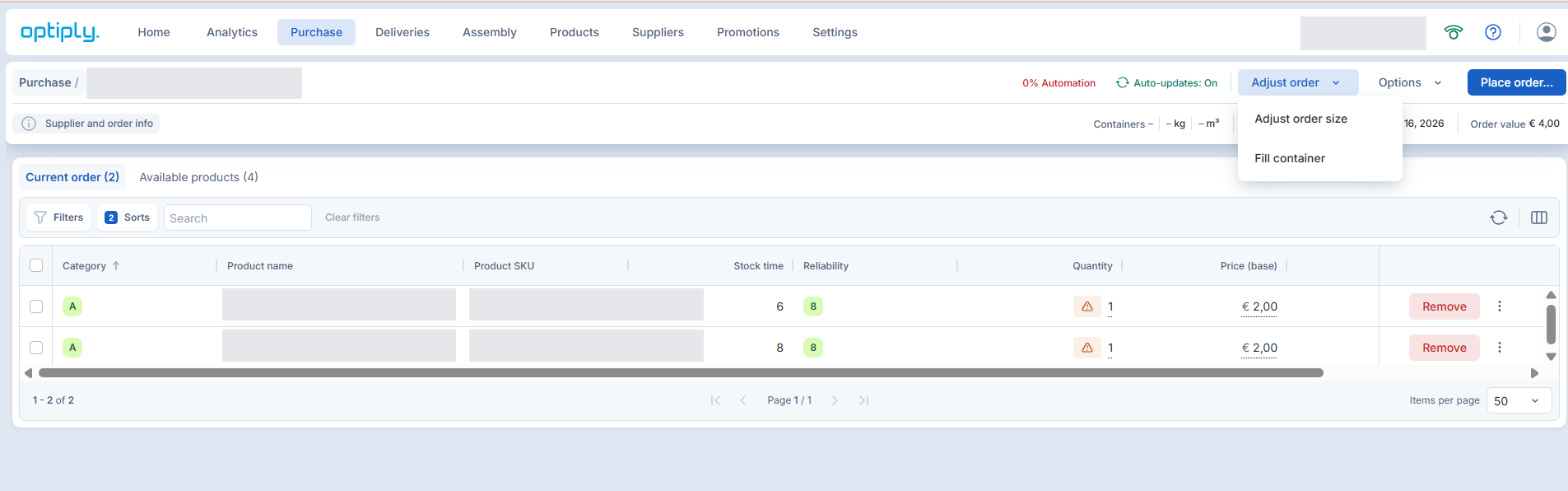
- Select Adjust order.
- Select Adjust order size.
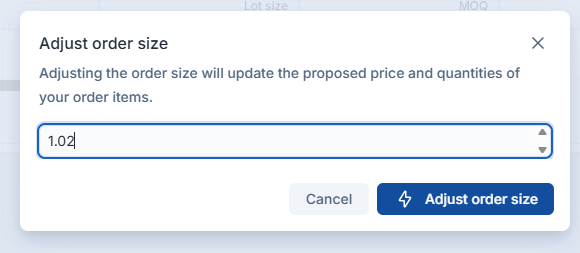
- Enter a positive adjustment factor different from the current value.
- Read the warning about updating proposed prices and quantities.
- Select Adjust order size to apply the request.
Use Cancel instead if you do not want to apply it.
- Wait for the order tables to reload.
- Review quantities, prices, line totals and supplier warnings.
- Save or place the order only after checking the result.
Fields in Adjust order size
| Field or control | Meaning |
|---|---|
| Adjustment factor | A positive number. Below 1 requests a smaller order, while above 1 requests a larger order. |
Reference factor 1 | The reference scale, not a command to undo earlier edits. |
| Adjust order size | Applies the changed factor and recalculates the proposal. |
| Cancel | Closes the dialog before application. It does not undo a completed recalculation. |
| Quantity | The proposed amount for each product after recalculation. |
| Price (base) / Total Price | The recalculated price and line total to check. |
| MOQ / Lot size | The supplier’s minimum quantity and ordering increment. |
| Order value | The total cost to review before proceeding. |
For example, 0.5 requests a reduction and 1.5 requests an increase. The screenshot’s 1.02 is an example input, not a recommendation.
These factors do not promise an identical percentage change for every line or the total. Stock inputs and ordering constraints affect the result.
For a stock review, use Free stock, Stock position, Order up to, Incoming stock and Safety stock where shown. Check Products in order and ETA in the overview too.
What you see when order adjustment worked
The dialog closes and the order tables reload with the requested factor. Check the new quantities, prices, totals and warnings. Recalculation does not place the order.
Limits of adjusting a proposed order
- The adjustment changes this proposal, not saved supplier lead time, MOQ, lot size or reorder period.
- A smaller proposal can leave shortages partly uncovered.
- A larger proposal does not guarantee availability or a financial result.
- Recalculation can overwrite manual proposal changes and clears an earlier container preview.
- The adjustment menu is not offered in Lite or view-only purchase editors.
If order adjustment did not work
- Confirmation is disabled: change the current factor and wait for any save to finish. Enter a positive value and follow validation.
- The menu is missing: confirm that you opened a proposed order with Purchase edit access. Ask your administrator about edition access.
- The result is unsuitable: review the affected lines, then request a different factor if appropriate.
- A supplier warning remains: check MOQ and lot size before proceeding.
- The request fails or stalls: refresh and check current quantities before retrying. Do not place an unclear result. Contact Support if needed.