

What ABC categories mean in Optiply
An ABC category in Optiply shows which part of your total contribution a product belongs to, under the criterion selected for your account:
- Gross margin: for each product, units sold × (sales price minus purchase price), added up. This is the product's total margin in money, not a margin percentage. A product whose total margin is negative counts as zero.
- Revenue: for each product, units sold × sales price, added up.
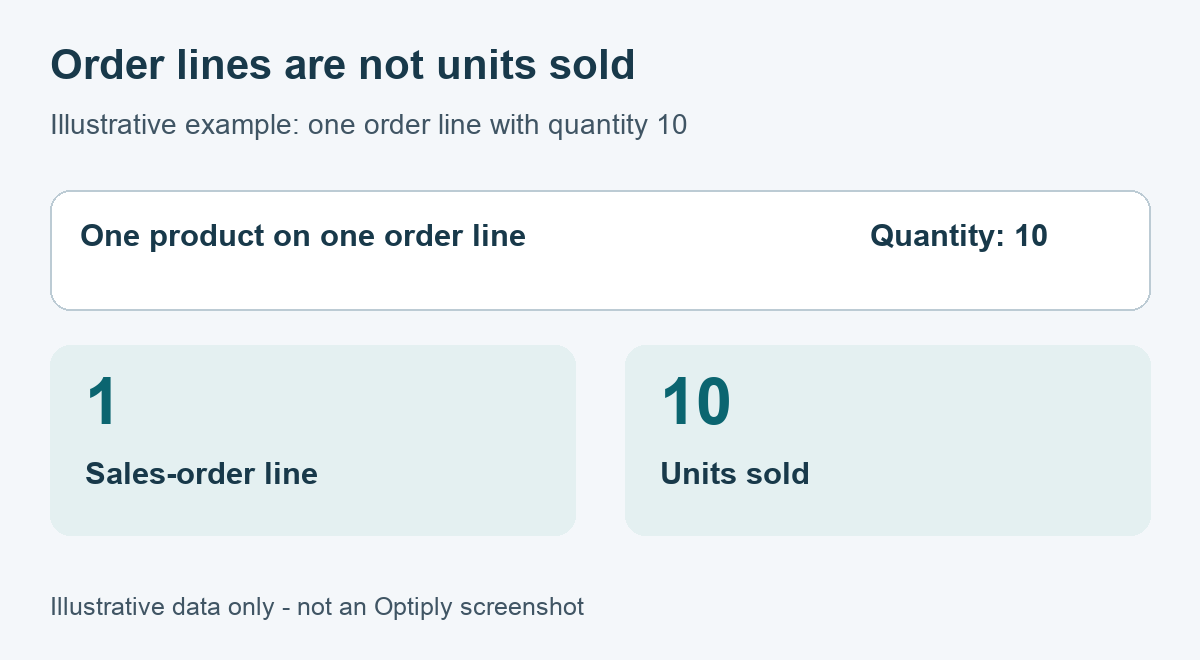
- No. of sell order lines: for each product, the number of sales order lines. A sales order line is one product line on a customer order, whatever its quantity. One order line containing ten units therefore counts as one line, not ten.
For Gross margin and Revenue, Optiply uses the product's current prices, not the price of each past sale. The purchase price is the active supplier's price, with the average of the non-zero supplier prices as a fallback. These figures explain the ranking and can differ from your invoiced revenue.
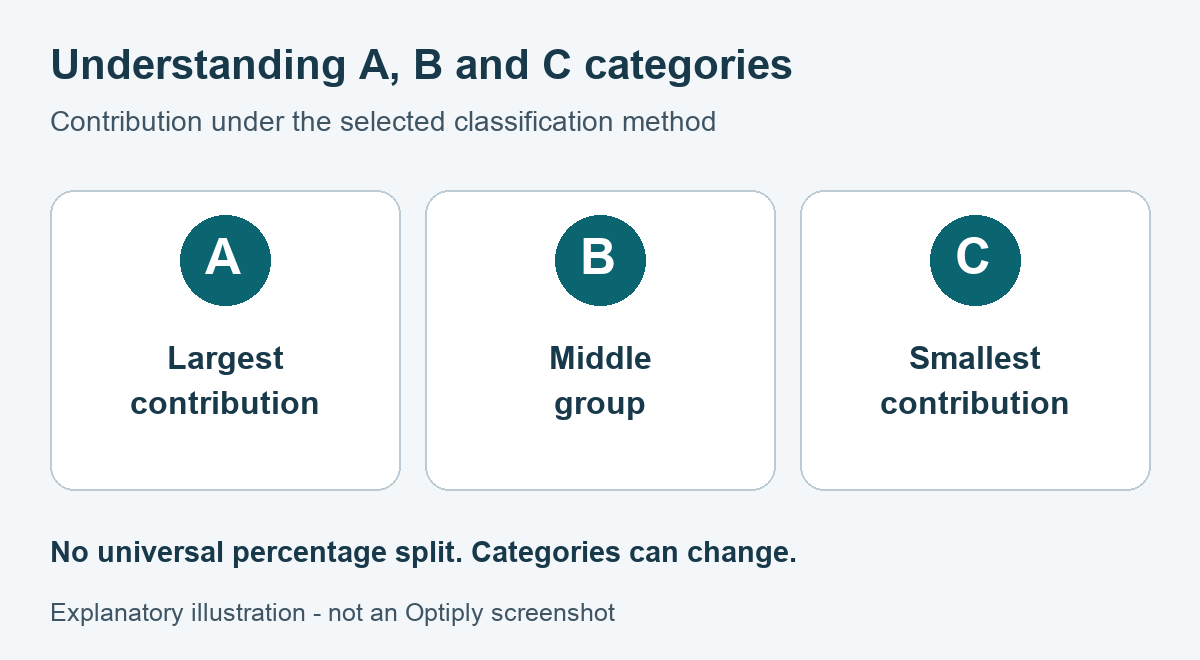
The boundaries are shares of the total contribution. Category A holds the earlier, higher-contribution part of the ranking, B the middle part and C the remaining part.
The ABC category is calculated, not a permanent product label. Changes to contribution data or saved classification settings can change a product's category.
What XYZ categories add with advanced categorization
With advanced categorization, Optiply ranks your products a second time, by the selected XYZ criterion: Gross margin, Revenue or No. of sell order lines. Optiply assigns X, Y and Z with cumulative boundaries, the same way as A, B and C. It then combines both rankings into one category per product, from AX to CZ.
ABC-XYZ adds a second contribution axis and separate service-level targets for each combination, giving you finer stock-policy control than three ABC classes.
For an AX product, A is its ABC result and X is its separate XYZ result. Check both axes in Settings > ABC - XYZ classification, under ABC settings and XYZ settings. Each axis has its own input criterion and percentage boundaries. The price-data rules below can change the effective criterion on either axis.
| Axis | First group | Middle group | Last group |
|---|---|---|---|
| ABC | A: cumulative share below A | B: share at least A, below A+B | C: share at least A+B |
| XYZ | X: cumulative share below X | Y: share at least X, below X+Y | Z: share at least X+Y |
Compare the product's cumulative contribution on each axis with that axis's boundaries. For example, suppose ABC uses revenue with A 70%, B 20%, C 10%. XYZ uses sales-order lines with X 60%, Y 30%, Z 10%. A product with cumulative shares of 50% by revenue and 40% by lines is AX. At exactly 70% by revenue it becomes B. At exactly 60% by lines it becomes Y. These are example settings, not account defaults.
There is no universal recommended ABC/XYZ percentage set. Ask Support to confirm suitable percentages for your selected contribution method and business or service objective.
How Optiply calculates ABC categories
To calculate ABC categories, Optiply ranks products by their contribution to the selected criterion, highest first. It then adds each product's share to a running total and compares that cumulative share with the contribution boundaries configured for your account:
- Below the A boundary: category A.
- At or above the A boundary and below the A+B boundary: category B.
- At or above the A+B boundary: category C.
A product whose cumulative share exactly reaches a boundary therefore moves into the next category. With boundaries of 70% and 90%, a product at exactly 70% is B and a product at exactly 90% is C. In Settings > ABC classification you enter the boundaries as A, B and C percentages: the A boundary is A, and the A+B boundary is A plus B.
The sales-history period controls which history Optiply considers. History length is measured in whole days, from 30 to 365. With the simulator layout, History length and Sell order threshold are in Settings > Algorithm. Other layouts show these controls with classification settings.
When Optiply falls back to another ABC criterion
Data quality can change the criterion Optiply uses for ABC categories. Optiply counts products, and exactly 50% does not trigger a fallback:
- With Gross margin, Optiply counts missing sales prices and unusable purchase prices separately. If either count exceeds 50% of products, it uses Revenue instead. A missing, zero or negative purchase price is not usable. Optiply also uses Revenue instead when the total margin is not positive.
- With Revenue, Optiply will use the No. of sell order lines criterion instead when more than 50% of products lack a sales price. It also does this when the total revenue is not positive.
How the low-order-line rule changes ABC categories
The low-order-line rule applies in standard ABC classification. It puts a product into C when its number of sales order lines is at or below the Sell order threshold configured for your account. Advanced categorization does not apply this rule.
How Optiply uses ABC categories for service-level targets
ABC categories in Optiply help you set different stock-availability priorities: you can use them for different service-level targets. A category target is the desired service level for an ABC or ABC-XYZ category. By default, the desired service level is 98% for A products, 95% for B products and 90% for C products. These defaults are not confirmation of your account's saved targets. Ask Support to confirm the actual saved desired service levels for your ABC or ABC-XYZ categories. Review those targets separately from the category itself: an A product does not always need the highest target.
Low demand does not mean one unit for every ABC category
A demand estimate of 0.5 or 0.2 units does not directly specify an order quantity. Demand feeds the calculated Order up to target. Optiply rounds that target upward to whole units, then uses the positive difference between target and stock position.
Suppose the calculated target before rounding is 0.5 units and the stock position is zero. The rounded target is one unit, so the base requirement is one. A target of 0.2 also rounds to one. Change only the stock position to one unit: the base requirement becomes zero.
These examples start from a calculated target, not demand alone. Review the actual target and stock position for an A, B or C product. Minimum order quantity, lot size, maximum-stock settings and supplier-stock limits can change the final quantity.
Why a C product can have advice at 0% service level
First distinguish the desired service-level target from the achieved service level. Achieved availability of 0% describes a measured result, not an instruction to stop purchasing.
When the desired target is genuinely 0%, the target calculation returns an Order up to level of zero. Negative effective stock or an applicable manual Minimum stock level can still create a positive requirement. MOQ, lot size and stock limits then affect the final quantity.
For example, a zero target and stock position of −2 units can require two units to restore the position to zero. That example assumes no manual minimum or other quantity constraints. Ask Support to check the effective stock position, target and manual limits if a particular order remains unexplained.
Example: four garden products ranked by revenue
This example uses made-up numbers for four garden products. Your account uses the Revenue criterion with complete price data and a positive total. In the sales-history period, the four products contribute €500, €250, €150 and €100.
- Criterion: Revenue
- Revenue per product: garden hose €500, watering can €250, pruning shears €150, plant labels €100
- Total revenue: €1,000
- Boundaries: A boundary 70%, A+B boundary 90%. In Settings > ABC classification these are A 70, B 20 and C 10. They are example settings, not defaults for every account.
- The example assumes no low-order-line override changes the results.
Optiply ranks the products by revenue and sums their shares of the €1,000 total in that order:
| Product | Revenue | Cumulative share | Category with A boundary 70% and A+B boundary 90% |
|---|---|---|---|
| Garden hose | €500 | 50% | A |
| Watering can | €250 | 75% | B |
| Pruning shears | €150 | 90% | C |
| Plant labels | €100 | 100% | C |
- The garden hose reaches 50%, below the 70% A boundary, so it is A.
- The watering can reaches 75%. Reaching the 70% boundary moves it into B.
- The pruning shears reach exactly 90%: reaching the 90% boundary moves it into C.
- The plant labels reach 100%, so they are C as well.
The result is one A, one B and two C products.
Now change one input: the A boundary becomes 80% and the A+B boundary stays 90% (A 80, B 10, C 10). The watering can's 75% is now below the A boundary, so the watering can moves into A. The result is two A products, no B product and two C products.
In Optiply, open each product's Product tab to see the category it received, and compare it with the boundaries in Settings > ABC classification.
Where to find ABC categories in Optiply
- A product's ABC category in Optiply: open Products, open the product, go to the Product tab and look at Category in the Product details section. With advanced categorization, Category shows the combined ABC and XYZ category, such as AX.
- The criterion and boundaries: Settings > ABC classification, or Settings > ABC - XYZ classification with advanced categorization.
- History length and Sell order threshold: Settings > Algorithm in the simulator layout, or within classification settings in other layouts.
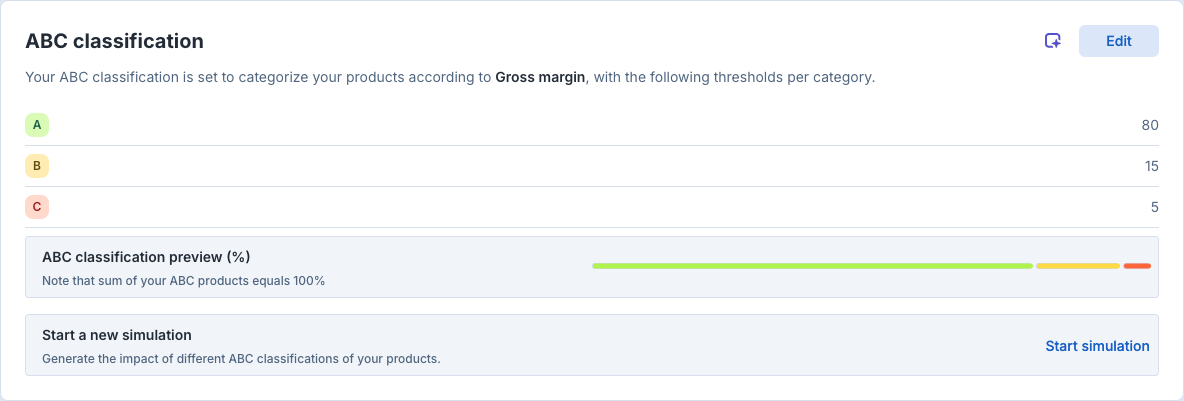
This example account uses Gross margin and thresholds 80, 15 and 5. Your account's values can differ.
Ignored products, and assembled products when the assembly feature is not enabled, show Category disabled on their Product tab.
How to review ABC classification settings in Optiply
Authorized users can review the classification inputs and boundaries for ABC categories in Settings > ABC classification, or Settings > ABC - XYZ classification with advanced categorization. The guide Configure ABC classification explains the available classification settings. If you cannot edit those settings, ask an authorized administrator in your account to review them.
Can you assign an ABC category manually?
Normal ABC classification calculates the label from contribution data and account thresholds. Review those rules rather than treating the category as a free-text product field. If you need a fixed per-product override, ask Support whether your account supports it. Support must confirm the edit route and what recalculation does to that override.
Which threshold can you change for ABC-XYZ categories?
These controls serve different purposes:
- Classification boundaries define A/B/C and X/Y/Z from cumulative contribution.
- Desired service levels set availability targets for combinations such as AX or CY in Settings > ABC - XYZ classification.
- Sell order threshold is one low-sales-order-line cutoff, not a separate cutoff per category. It forces products into C only outside advanced categorization. In the simulator layout, look for it in Settings > Algorithm.
For an add-on or a cutoff that applies independently to several categories, ask Support which ordering controls your account supports. A service-level grid is not a category-specific order-threshold grid.
What should you change for the low season?
An ABC category still follows the selected contribution metric, history period and boundaries during the low season. A low-season label alone does not justify a particular threshold change. Review those inputs and the service-level targets separately. If you want a seasonal stock policy, discuss the intended outcome with Support before changing classification rules.
When saved ABC changes reach purchase advice
A saved ABC setting does not promise an immediate change to existing purchase advice. No. of sell order lines is a supported classification basis. The price-data substitutions for Gross margin and Revenue do not explain a saved sales-line choice being ignored.
Check three things separately: the saved classification method, the product's resulting category and the desired service level for that category. If the old result remains, give Support the product code, changed settings and time of the change. Ask Support to confirm which calculation used the saved settings and when its result reached the advice.
Can you see when a product moved from C to B?
Optiply records changed classifications with their previous category, new category and a recorded write time. Ask Support to check the product's categorization results for the C-to-B transition. Include the product code and the date range you need. The timestamp records the calculation result's write time, not necessarily when you first saw the label.
Support must confirm whether records remain available for that period and whether your account offers a customer-visible history view. Do not use the current product label as the date of a past change.
Where can you compare performance by ABC category?
Optiply calculates service-level metrics by category. In Analytics, check the Performance report for the category breakdown your account offers. The category view can show combinations such as AX–CZ. Read its selected period, metric and unit before comparing categories.
Use the Performance report guide to interpret its totals and category charts. If you need A/B/C-only performance or cannot find that view, ask Support to confirm the report and metrics available in your account.
If a product's ABC category surprises you
When a product's ABC category in Optiply is not what you expected, check these in order:
- Criterion: in Settings > ABC classification, you see the selected criterion: Gross margin, Revenue or No. of sell order lines. If it is not the criterion you expected, ask an authorized administrator to review it.
- Sales-history period: check History length in Settings > Algorithm with the simulator layout, or in classification settings otherwise. Compare only sales within that period.
- Price completeness: for Gross margin or Revenue, check the price-data rules above. They do not replace a saved sales-order-line choice.
- Boundaries: compare the saved A, B and C values with the product's cumulative contribution.
- Low-order-line rule: in standard classification, compare sales-order-line count with Sell order threshold. A count at or below it forces C. Advanced categorization skips this rule.
- Service-level target: check the service-level target for the product's category separately from the category itself.
If the settings and data match and the category still surprises you, contact Support with the product code and the settings you compared.
How ABC categories differ from XYZ categories, unit sales and purchase advice
- ABC category and XYZ category. In Optiply, both categories rank contribution, each by its own criterion. An XYZ category does not measure how variable demand is.
- ABC category and unit sales. An ABC category measures contribution to the selected criterion. Unit sales count the units sold.
- ABC boundaries and product counts. A boundary is a share of the total contribution, and the number of products in each category follows from the ranking. No fixed percentage split is implied: a 70% A boundary sets a share of contribution, whatever share of your products is in A.
- ABC category and purchase advice. By itself, an ABC category ranks contribution only. Deciding to buy, discontinue or remove a product, including whether to keep stocking a C product, takes more than the category. A C category and a zero forecast each explain only part of whether a product should have purchase advice.
Questions customers ask about ABC categories
Why is a C item with service level 0% being purchased?
An achieved service level of 0% describes measured availability, not an instruction to stop purchasing. When the desired target is genuinely 0%, Order up to is zero, but negative effective stock or an applicable manual Minimum stock level can still create a positive requirement.
I want to inform colleagues internally: how does the A, B, C category come about? When is it A, B or C and what does that mean? When does it shift from one to the other or the other way around?
Optiply ranks products by contribution to the selected criterion and compares each product's cumulative share with the account's boundaries: below A is A, from A up to A+B is B, and at or above A+B is C. Changes to contribution data or saved classification settings can change a product's category.
Tell me why a product is AX. I need to know the contribution of the product in the ABC and the XYZ axis. Where are the borders for a product to move from B to A, C to B, Z to Y?
For an AX product, A is its ABC result and X is its separate XYZ result; check each axis's selected criterion and percentage boundaries in Settings > ABC - XYZ classification. A product moves from A to B at the A boundary, from B to C at A+B, from X to Y at X, and from Y to Z at X+Y.
When demand is low (e.g. 0.5), is 1 unit purchased for A, B and C items? A C item with 0.2 demand, is that ordered once?
Demand feeds the calculated Order up to target, which Optiply rounds upward to whole units; the base requirement is the positive difference between that target and stock position. MOQ, lot size, maximum-stock settings and supplier-stock limits can change the final quantity.