

Delivery views
The page separates orders into three tabs:
- Overdue orders are open orders whose expected delivery date has passed.
- Today & Future orders are open orders expected today or later.
- Completed orders are orders that have been closed. A completed order is not necessarily an order for which every originally ordered unit arrived.
The number beside each tab shows how many orders are currently in that view. Select a row to open the delivery editor.
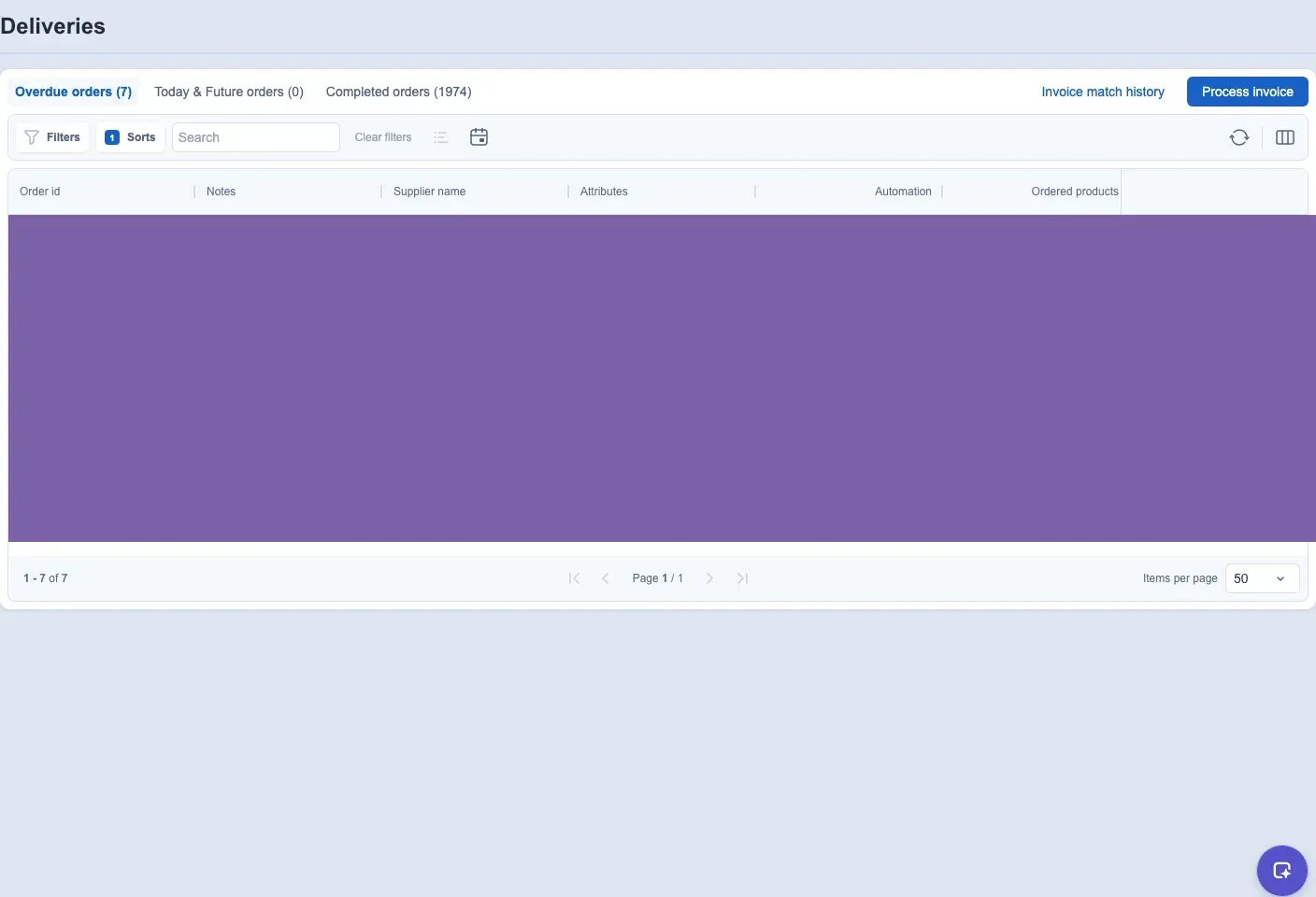
Delivery-list controls
Use search, filters, and sorting to narrow the current tab. Available columns can include order and supplier information, ordered and delivered product counts, progress, value, expected or closed dates, notes, assembly information, and automation status.
Clear filters removes the current filters and search terms. You can change the visible columns and their order, move through result pages, and choose the available page size. Use Refresh when you need to load the latest available list data.
Where supplier access is available, select a supplier value to open supplier information. That action is unavailable when the supplier was deleted or your access does not include supplier details.
The table shows a loading state while data is being retrieved and an empty state when no orders match the current view. Clear filters or refresh before concluding that the order is unavailable.
List and calendar views
Where the calendar is available, use the list and calendar buttons to change how deliveries are displayed. The calendar can help you review expected dates across a week, month, or year.
See Use the Optiply calendar views for calendar navigation and actions.
Open, receive, or close an order
Open an overdue or expected order to review its undelivered and delivered products. Users with edit access can record receipt quantities, update expected dates, and close an order.
Saving receipt quantities and closing the order are separate actions. Save any receipt changes first. Close an order only when it should no longer remain open, even if some products remain undelivered. The confirmation warns that closing cannot be undone. Reopen order, where offered, is a separate action that returns the order to open deliveries. It is not an undo of receipt changes.
See Receive a purchase order for the complete generic workflow. Orders marked for Assembly use separate In Assembly and Assembled views; see Use the Assembly page.
Reopen a completed delivery order
To reopen a completed delivery, select Deliveries → Completed orders, open the order's options and choose Reopen order. Confirm Reopen order. Purchase-order editing must be enabled. The table hides this action for view-only Deliveries access. Reopening returns the order to open deliveries for new receipts.
Before you reopen an order
- Select the correct webshop and completed order.
- Purchase-order editing must be enabled for the webshop. The completed-order table hides Reopen order for view-only Deliveries access.
- The default delivery editor also offers this action when purchase-order editing is enabled. This is not an Assembly-order procedure or a Lite-editor procedure.
Steps to reopen an order
- Open Deliveries → Completed orders.
- Open the intended order's options menu and select Reopen order.
- Check the order, then select Reopen order in the confirmation dialog.
- Check the open-delivery lists after the request succeeds.
- Open the returned order and register new receipts through the normal receipt workflow.
In the default delivery editor, use Options → Reopen order for a completed order, then confirm the request.
Fields in the reopen confirmation
Reopen order confirms the status change. It returns the order to open deliveries so you can register new receipts. Cancelling the confirmation does not request reopening.
What you see when reopening worked
The completed-order table refreshes the delivery lists and calendar after success. From the default editor, you return to Overdue orders or Today & Future orders, according to the order's overdue status.
Limits of reopening
Reopening is separate from saving receipts. Do not use it to restore or erase receipt history. Use only the action offered for your order and account. These editor steps apply to the default delivery editor. See the separate Lite guide for Lite workflows.
If reopening did not work
A closed confirmation dialog alone does not mean the request succeeded. If saving fails, refresh the delivery list and verify the order's status before retrying. If the action is absent, check purchase-order editing and your Deliveries access with your administrator.
Export delivery information
Use Options or Export as... where shown to export the current order. The formats offered depend on the export surface you opened. See Exports.
Invoice matching
When purchasing-invoice matching is enabled for your account, Process invoice and Invoice match history appear on Deliveries. Invoice matching is separate from recording a receipt or closing an order.
See Review purchasing-invoice matches.
Access and edition differences
Your edition, permissions, and enabled account features determine which controls appear. View-only access keeps delivery lists, order details, filters, columns, and exports available, but does not expose receipt, date-edit, product-edit, or close controls. Optiply Lite uses the list-based workflow described in Optiply Lite Deliveries.
Find an order
Purpose
Narrow the current Deliveries view to find the correct open or completed purchase order before reviewing or editing it.
Prerequisites
- Open Deliveries for the correct webshop.
- Choose the appropriate status tab.
- Know a Supplier, order identifier, date, status, or other useful order characteristic.
Steps
- Choose Overdue orders, Today & Future orders, or Completed orders.
- Enter search text and apply the relevant filters and sorting.
- Choose visible columns when more order context is required.
- Review the matching rows and open the intended order.
- Use Clear filters to reset the result or Refresh to reload current data.
Fields and columns
- Supplier and order identifiers distinguish the order.
- Ordered, delivered, progress, value, expected-date, closed-date, notes, Assembly, and automation columns provide available context.
- Search, filters, sorting, column selection, and pagination affect the current result presentation.
Expected result
The current tab shows the orders matching your criteria, and the intended order can be opened without changing it.
Limitations
- Available columns and actions depend on access, edition, order status, and enabled features.
- A completed order can still contain quantities that were not received.
- Refresh reloads available data but does not change order status.
Errors and recovery
- If no rows match, clear search and filters, confirm the status tab and webshop, then refresh.
- If Supplier details cannot open, check Supplier access or whether the Supplier was deleted.
- If the table remains in an error state, keep the order identifier and retry after the visible access or connection issue is resolved.