

An order has an expected delivery date, and its undelivered products can have their own dates. Decide whether you want to update the order, individual products, or both before making a change.
Example: one product in an order is delayed
Your order contains two products expected on 20 November. The supplier tells you that one product will arrive on 25 November instead.
Use Change one product's expected delivery date below for the delayed product. After applying the change, check that it shows 25 November and the other product still shows 20 November. This is an illustrative example; the screenshot shows a separate date selection.
Before you change an expected delivery date
- You need Deliveries edit access and an open order.
- Find the order in Overdue orders, Today & Future orders, or the Deliveries calendar.
- For an order-wide change, decide whether the undelivered product dates should change too. Use Update all undelivered products from this order when that option is shown and you want to include them.
Steps to change an expected delivery date
Choose the procedure that matches what you want to change.
Change an order's expected delivery date
- Open Deliveries and choose Overdue orders or Today & Future orders.
- Locate the order and open its Expected delivery date picker.
- Choose the new date.
- When shown, select Update all undelivered products from this order if you also want to update its undelivered product-line dates.
- Select Apply. Use Cancel to close the picker without applying the selected date.
- Check the order date and the affected product-line dates after the update finishes.
Change the date from the Deliveries calendar
- Select the delivery event in the Deliveries calendar.
- Choose Change expected delivery date.
- Use Previous month or Next month to find the month, then select the date.
- Select Apply, or Cancel to leave the date unchanged.
- Check the updated order date. Check product-line dates separately if they also need changing.
Change one product's expected delivery date
- Open the order and select Undelivered products.
- Find the product line and open its Expected delivery date picker.
- Choose the new date, then select Apply. Use Cancel to leave the date unchanged.
- Wait for the update to finish, then check that line's date and any other dates you intended to leave unchanged.
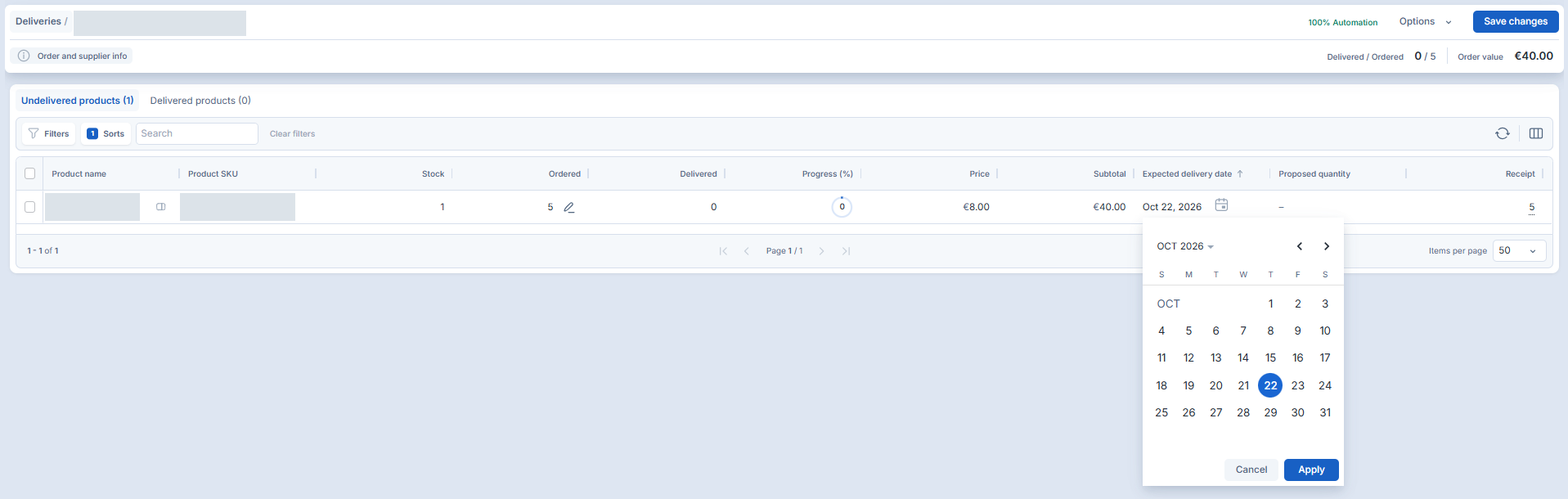
The picker shown changes one product line. Select Apply to submit its date change; the page's separate Save changes button is not needed for this date update.
Change several products' expected delivery dates
- Open the order's Undelivered products tab and select the rows to update.
- Choose Edit Expected delivery....
- Under Select a date, choose the new date.
- Select Apply. Use Reset to clear the staged date, or Cancel to leave the lines unchanged.
- Check each selected product line after the update finishes.
Fields to check when changing delivery dates
- Expected delivery date — the planned arrival date of the order or product line you are editing.
- Update all undelivered products from this order — includes undelivered product-line dates in an order-level change when this option is shown.
- Order ID and Supplier name — identify the order; Product name identifies a product line.
- Ordered, Delivered and Progress — help you check the order or line's delivery status.
- Placed date — identifies when the order was placed, rather than its planned arrival.
What you see when the delivery-date change worked
The selected order or product lines show the new expected date after the update completes. Check both the order-level date and the affected product-line dates, especially after using Update all undelivered products from this order.
Limits of changing an expected delivery date
- Order-level and product-line dates can be different. An order-level change does not always update every line; use the explicit update option when shown and check the result.
- Completed orders and view-only screens can omit date-edit controls.
- Changing a date does not record a receipt or close an order.
If the delivery-date change did not work
- The picker is disabled: confirm that the order is open and you have Deliveries edit access. If an update is already running, wait for it to finish before trying another date.
- Apply is disabled: select a date first, or use Cancel to close the picker without applying a change.
- No lines appear in the bulk editor: close it, select the undelivered rows, then choose Edit Expected delivery... again.
- The date appears unchanged: refresh the relevant list or editor and check both the order and affected product-line dates.
- The update fails: check the date currently displayed after reloading, retry the date change, and contact Optiply Support if the state remains unclear.
Related articles on deliveries and delivery time
An expected delivery date is a planned arrival on the calendar. Expected lead time is the supplier lead time you plan around; measured delivery time is an average based on recorded delivery history. Neither time value is the actual delivery date of the current order.