

Before you create a manual purchase order
- Have Purchase edit access. View-only users cannot use the manual editor.
- Choose the supplier for this order.
- Obtain the supplier's product identifiers, prices, MOQ and lot-size rules.
- Check weight and volume when you use those fields.
- Confirm that each product is connected to this supplier, or prepare to connect it first.
If your access only permits viewing, return to Purchase and ask your administrator to confirm your permissions. Do not try another URL to bypass access.
Steps to create a manual purchase order
Choose the supplier and products
- Open Purchase for the correct webshop.
- Use Search for a supplier… to select the supplier.
- Select Create manual order.

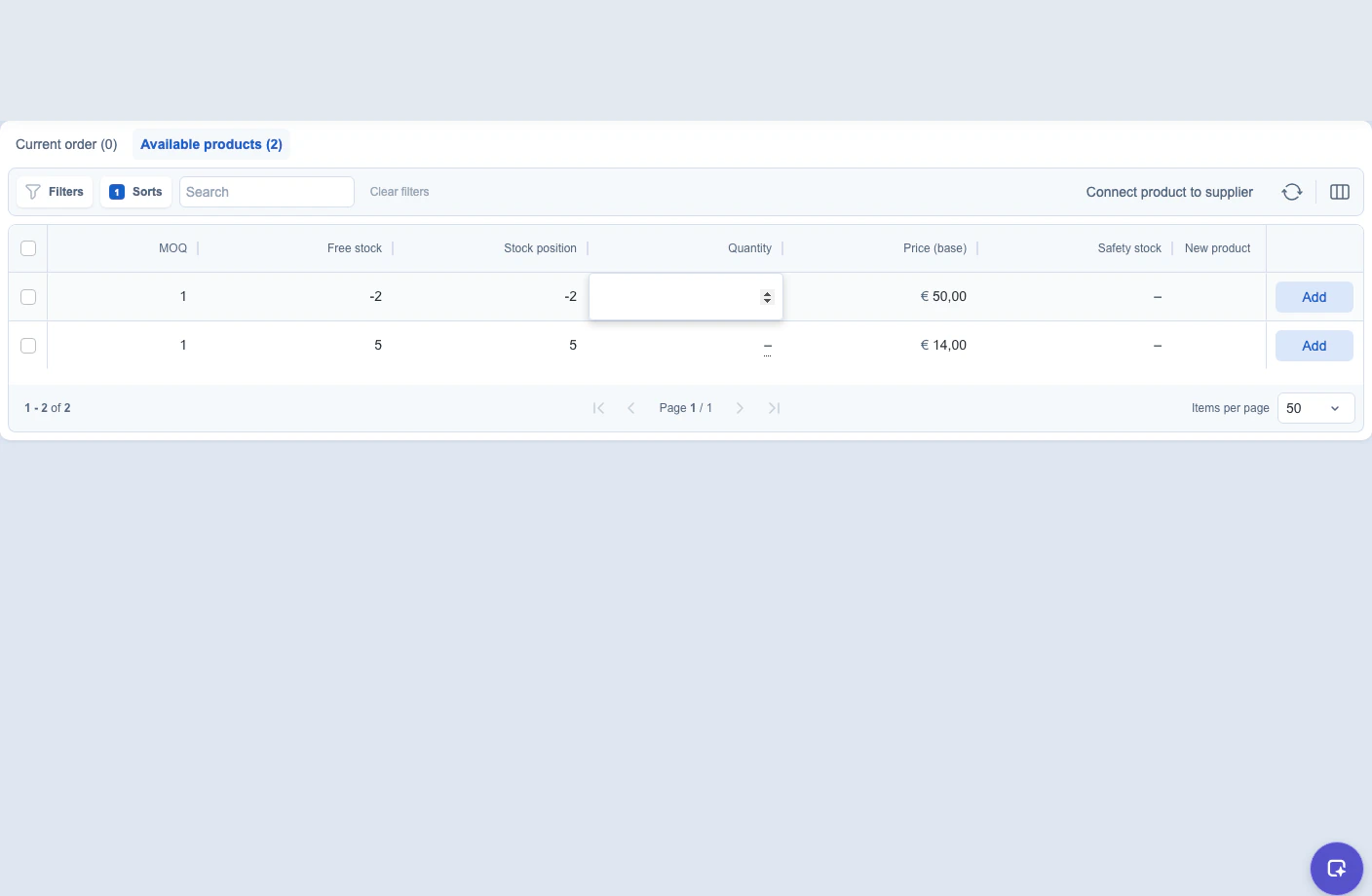
- Open Available products in the manual editor.
- Use search, filters, sorting or pagination to find the required supplier-linked products.
- Enter the required Quantity for each intended product.
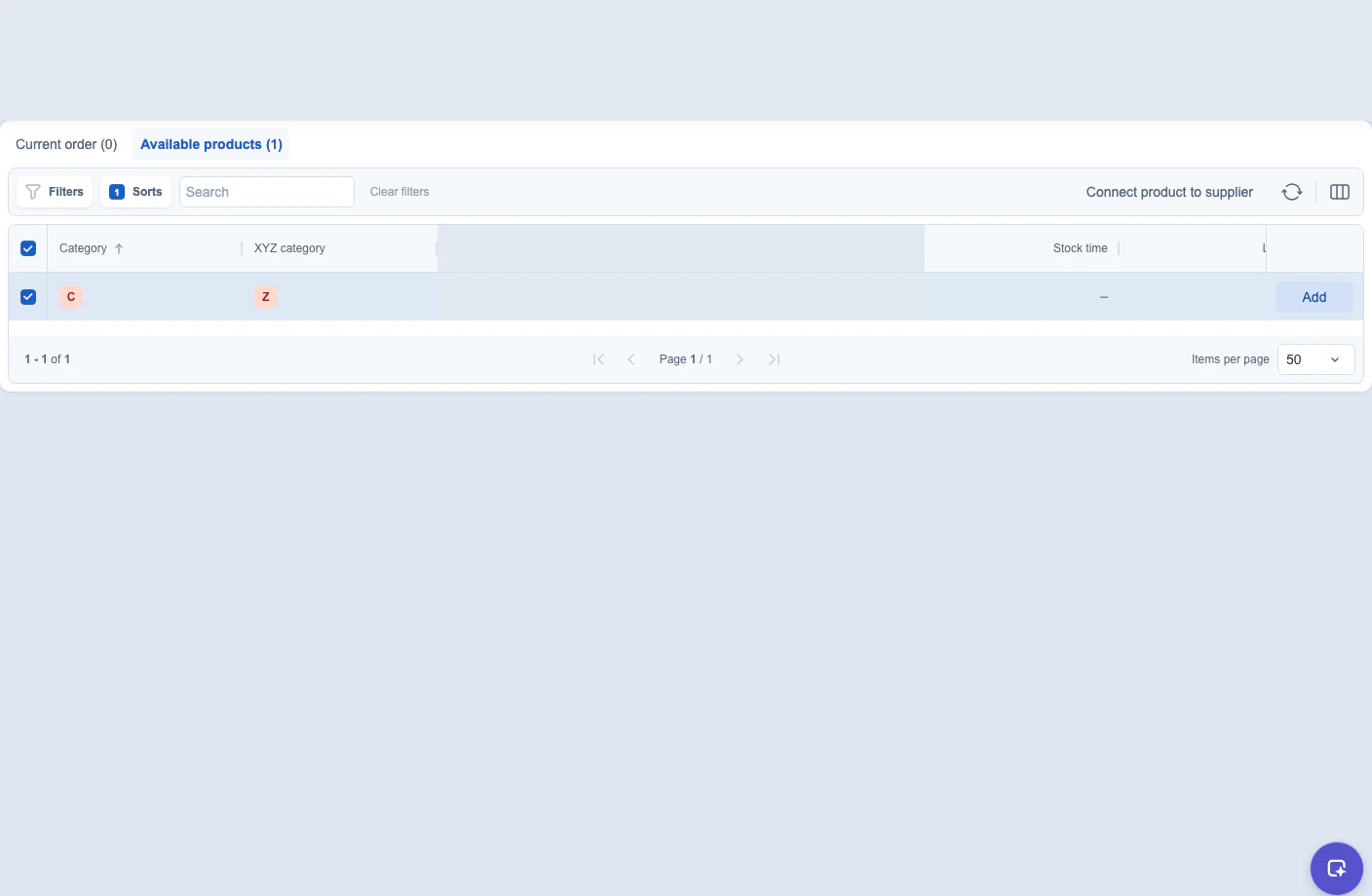
- Select the intended rows.
- Select Add.
Review the lines and save the draft
- Open Current order.
- Check every product and quantity.
- Edit Price (base), Weight or Volume where those fields are enabled.
- Select unwanted lines and choose Remove.
- If a product is missing, use Options → Connect product to supplier before adding it.
- Review the totals and supplier quantity constraints.
- Select Save order... or Save order.
- If the save dialog opens, review its draft and automatic-update message.
- Select Proceed to save, or Cancel to return to the editor.
- Wait for the Draft order editor to open.
- Check the saved products and quantities before continuing.
Do not ask again skips this save confirmation on subsequent saves. It does not change saving into placement. The manual editor's save action creates a draft, not a placed order.
To place the saved draft, use its separate Place order action and review the placement confirmation. To continue later, find it under Purchase → Draft orders.

Fields in the manual purchase order
Manual-order controls
- Search for a supplier… — finds the supplier for the manual order.
- Create manual order — opens the manual editor for the selected supplier.
- Current order — shows products already added to the manual order.
- Available products — shows supplier-linked products that can be added.
- Options — includes Connect product to supplier when available.
- Save order... or Save order — saves the manual order through the path shown for the account.
- Add — adds the selected available products.
- Remove — removes selected current-order products.
- Clear selection — removes the current row selection without changing products.
Manual-order line fields and columns
- Product name — the product being ordered.
- Product SKU, Product EAN code, and Product article code — identifiers for the product when available.
- Supplier product name, Supplier product SKU, Supplier product EAN, and Supplier product article code — identifiers supplied for the selected supplier.
- Active — whether the supplier-product relationship is active.
- Preferred — whether the relationship is marked as preferred.
- New product — the product status shown by the table when available.
- Category and XYZ category — configured product classifications when available.
- Quantity — the quantity to add or order. Supplier Lot Size can set the permitted minimum and step.
- Price (base) — the editable base price for the line.
- Total Price — the resulting line total.
- Lot size and MOQ — supplier ordering constraints to review before saving or placing.
- Weight — the line weight, displayed in grams when the field is available.
- Volume — the line volume, displayed in cubic centimetres when the field is available.
- Free stock, Stock position, Lead time, Safety stock, Incoming stock, Service level, Stock time, 30-Day forecast, and Last 30-Day demand — planning context that can be available as optional columns.
- Price (supplier), Cost price, and Discount price — supplier pricing context when the account exposes advanced pricing fields.
Both tables provide Filters, Sorts, search, Clear all filters, Refresh, pagination, and Column view where available. The Current order and Available products layouts are configured separately.
What you see when creating a manual purchase order worked
The Draft order editor opens with the selected products and line values. You can continue editing or find the saved order under Draft orders. The supplier has not received a purchase order just because you saved it.
Limits of creating a manual purchase order
- Manual ordering is separate from calculated proposed advice.
- Available products contains products connected to the selected supplier. Connecting another product is a separate save.
- Quantity rules, MOQ and lot size affect accepted values and warnings. Review the actual values before saving.
- Fields depend on edition, settings, permissions and supplier data.
- Saving and placing are separate actions. Opening either dialog does not confirm that its action completed.
- Saving does not send an email, EDI message or portal update to the supplier.
If creating a manual purchase order did not work
If Create manual order is unavailable, select a supplier and check Purchase edit access. During Purchase advice is temporarily unavailable, wait before creating an order.
If Available products is empty, clear its filters and refresh. Connect a missing product to the supplier before adding it. If Add is disabled, select rows and enter valid quantities.
If a value is rejected, check the displayed numeric range, MOQ and lot size. If connecting a product fails, review the required supplier-product fields and identifiers.
If saving is disabled, wait for saving and both product tables to finish loading. Current order must contain products. Clear its filters before concluding that the order is empty.
If saving or placement is uncertain, check Draft orders and the placed orders in Deliveries before retrying. Do not create a duplicate order until the first result is clear.