

Before you place a purchase order
- Have Purchase edit access for the correct webshop.
- Ask your administrator if save or placement controls are unavailable in a view-only order.
- Open the intended proposed order or saved draft.
- For a manual order, save it first and continue in the Draft order editor.
- Review every product in Current order, including quantities, prices and delivery information.
- Review MOQ, lot size, minimum order value and totals where shown.
- Confirm how you will send the order to the supplier: email, EDI, a supplier portal or another configured channel.
- If using email, check the available supplier email template and recipients.
Steps to place a purchase order
Route A: place directly from the proposed editor
Use this route when the proposed order is ready to place. You do not need a separate Save order step.
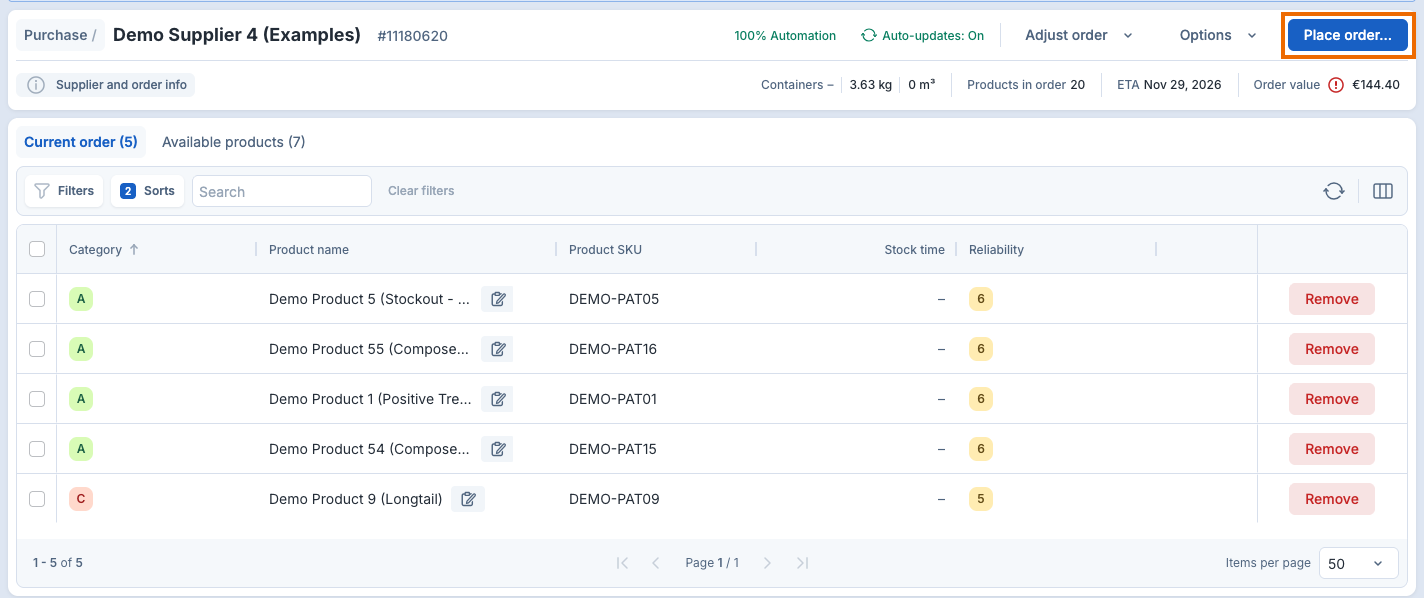
The framed Place order... button sits at the top right of the proposed editor, above Current order.
- Check the supplier and products in Current order.
- Correct line values and review the order summary.
- Select Place order... in the proposed editor.
- Review the separate Place order confirmation.
- If Replan agenda? appears, review its choices.
- If a container warning appears, review the reorder-period change.
- Select Place order to confirm, or Cancel to stop placement.
- Wait for the order reference and supplier with has been placed!.
Route B: save the proposal, review the draft, then place it
Use this route to keep the proposed order as a draft before placing it. Saving turns automatic updates off for that draft.
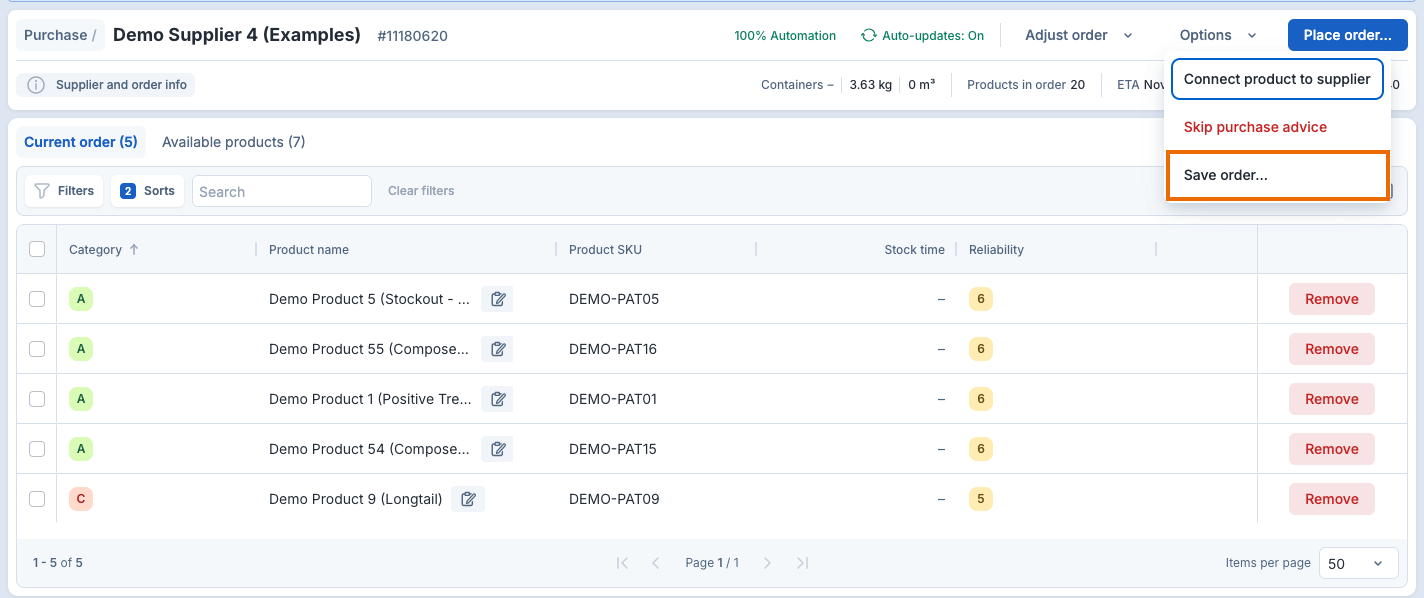
The framed Save order... item sits in the Options menu of the proposed editor.
- Review Current order in the purchase order editor.
- Open Options.
- Select Save order..., or Save order if the reminder is skipped.
- If the Save order dialog appears, select Proceed to create the draft.
- Wait for that order's Draft order editor to open automatically.
- Review the supplier, quantities and summary in Current order.
- Use Available products if you need to add products.
- When ready, select Place order... in the draft editor.
- Review the separate Place order confirmation.
- If Replan agenda? appears, review its choices.
- If a container warning appears, review the reorder-period change.
- Select Place order to confirm, or Cancel to stop placement.
- Wait for the order reference and supplier with has been placed!.
- Check the expected delivery date when one is shown.
Stay in the draft editor that opens after saving. You do not need to return through Purchase → Draft orders and reopen it.
In the save dialog, Cancel stops that save. Do not ask again skips the reminder on future saves, not the placement confirmation.
If you want to keep working later, Options → Save changes retains the draft without placing it. A separate save is not required before Place order.... For other draft actions, see Draft purchase orders.
Opening the placement confirmation can already save the proposal as a draft or save changes to an existing draft. Cancel stops placement. It does not undo that draft save. Check Draft orders before starting another order.
A future-order warning means that placing before the planned date can create unnecessary purchasing costs. Review that date before confirming. Replanning changes the supplier agenda when that option applies. Manually managed agendas do not offer the same replanning choice.
Fields in the order placement dialogs
Review before placement
- Current order — the products that will be included.
- Quantity — the quantity to place for each line.
- Price (base) and Total Price — the line price and total where shown.
- Weight and Volume — container-related line values when available.
- MOQ and Lot size — supplier quantity constraints.
- Products in order, ETA, and Order value — the purchase summary.
- Expected delivery date — the planning date shown for the order or line.
- Supplier and order info — supplier constraints, dates, notes, and totals available in the side panel.
Save and place controls
- Options → Save order... / Save order — creates a draft and opens its editor. A saved reminder preference controls the confirmation.
- Do not ask again — suppresses the save confirmation for the applicable workflow when selected.
- Proceed — continues from the save confirmation.
- Place order... / Place order — opens or confirms the placement action.
- Cancel — closes the current confirmation. In the placement dialog it stops placement, but it does not undo a draft save.
Placement confirmation controls
- Replan agenda?, Replan agenda, Do not replan — choose whether to change the applicable supplier agenda.
- A container warning explains the reorder-period change linked to an applied container fill. Review it before placing.
What you see when placing a purchase order worked
After Route B's save succeeds, that order's Draft order editor opens automatically. The order remains a draft until you confirm placement.
After placement succeeds, the result displays the order reference and supplier with has been placed!. An expected delivery date appears when available. You can then send the order by email or export a copy. See Send or export a placed purchase order. Check the order in Deliveries if you need to confirm it later.
Limits of placing a purchase order
- Save order... or Save order keeps a draft. It does not place or send the order.
- Successful placement does not mean that an email was sent. EDI and portal delivery depend on supplier configuration.
- When EDI is enabled and configured for a supplier, placing the order triggers the EDI message. That is not proof the supplier received it.
- To send an existing order by email, open it from Deliveries and choose Options → Send email, when available.
- Fields and labels depend on the order, edition, permissions and account configuration.
- Expected delivery is a planning date, not a supplier delivery guarantee.
If placing a purchase order did not work
If the placement action is disabled, wait for saving and both product tables to finish loading. Check that Current order contains products. Clear that table's filters before concluding that there are no lines. Correct invalid numeric values and inspect quantity, MOQ and lot-size warnings.
If saving fails or the draft editor does not open, check Draft orders before saving another copy. An unclear result does not mean nothing was saved.
If the confirmation shows the wrong supplier or order, select Cancel. Review the saved draft before continuing.
If placement fails or its result is unclear, keep the current workflow open. Check Draft orders and the placed orders in Deliveries before retrying. Do not create a duplicate order. Give Optiply Support the visible order reference, supplier and approximate time if the result remains uncertain.
If placement succeeds but email or export fails, retry that separate action for the existing placed order. Do not place the order again. See Send or export a placed purchase order.