

Open the order
- Go to Deliveries.
- Open Overdue orders or Today & Future orders.
- Search or filter for the order, then select its row.
- Review Order and supplier info, the delivered-versus-ordered total, and the order value.
The editor separates Undelivered products from Delivered products. Use filters, sorting, search, and column controls to focus on the lines you need.
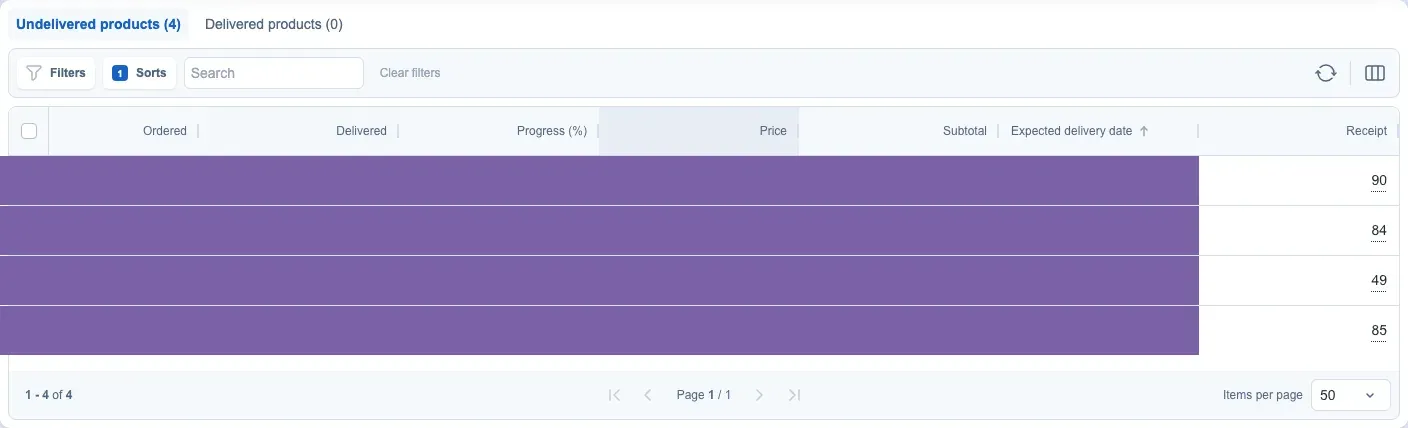
Clear filters removes active filters and search terms. Use Refresh to reload the active table, and use pagination to move through product results. Where product access is available, select a product name to open product information.
Record a receipt
Purpose
Record the quantity that arrived for each product line, including partial receipts, and save the receipt without closing the order.
Prerequisites
- Open an open order in the Deliveries editor.
- Have Deliveries edit access.
- Confirm which quantities arrived and whether another receipt may follow.
- If a connected webshop, ERP, or warehouse system also records receiving, confirm which system owns the receiving action before entering it here.
Steps
- Open the Undelivered products tab to find lines that still have quantity outstanding.
- Find each product that arrived.
- Enter the quantity for this receipt in the Receipt field. The field accepts a non-negative whole number.
- Review the edited lines and the Delivered / Ordered total. Use Delivered products to review previously delivered lines when needed.
- Use Save changes.
- Wait for the editor to reload and confirm that the saved quantities and tab counts reflect the receipt.
- For a partial receipt, leave the remaining quantity under Undelivered products and record the remainder in a later receipt.
Fields and columns
Editor controls
- Undelivered products (N) — products with quantity still outstanding.
- Delivered products (N) — products that have recorded delivered quantity.
- Receipt — the quantity in this receipt. It is not a replacement for the running delivered total; entering
0does not undo an earlier receipt. - Save changes — saves edited receipt values. It is unavailable while loading or saving, when the form is invalid, when no receipt line was edited, and for completed orders.
- Clear filters, Refresh, search, filters, sorting, Column view, and pagination — find and reload product rows; they do not change a receipt by themselves.
Product columns
The delivery editor can offer these columns, with availability depending on the tab and configuration:
- Product name — the product on the order line.
- Product SKU, Product EAN code, and Product article code — product identifiers when available.
- Proposed quantity — the proposed quantity shown for applicable edited or manually added lines.
- Supplier product name, Supplier product SKU, Supplier product EAN, and Supplier product article code — supplier identifiers when available.
- Stock — the displayed stock value for the product.
- Ordered — the quantity ordered for the line; it can be editable for eligible open orders.
- Delivered — the running delivered quantity.
- Progress — delivered progress for the line.
- Expected delivery date — the planned date for the line.
- Delivered on — the date shown for a delivered line.
- Receipt — the editable receipt quantity described above.
- Price, Subtotal, Delivered subtotal, and Undelivered subtotal — value context when those columns are available.
- Price (supplier), Cost price, and Discount price — additional pricing context when available.
- Automation — automation context when the account exposes it.
Expected result
The receipt is saved as a quantity for the selected lines. Partial receipts remain visible under Undelivered products until the ordered quantity is no longer outstanding; delivered lines can appear under Delivered products.
Limitations
- A receipt records what arrived in that receipt; it does not replace previously recorded deliveries.
- Save changes does not close the order.
- View-only users can inspect the tabs and columns but cannot edit receipt values.
- Completed orders retain delivery history but do not expose receipt editing.
- Entering the same receipt in Optiply and a connected receiving system can duplicate the receipt. Follow the workflow agreed for your integration.
Errors and recovery
- If no rows are visible, clear filters and search, choose the correct tab, or use Refresh.
- If the Receipt value is rejected, use a non-negative whole number and check the product's ordered and delivered quantities.
- If Save changes is disabled, wait for loading to finish, correct invalid values, or make an actual receipt edit.
- If saving fails, keep the editor open, read the displayed message, refresh only after checking whether the receipt was already recorded, and retry only when the state is clear.
- If you are warned about unsaved changes when leaving, save the receipt or deliberately discard the pending edits before navigating away.
Close the order
Purpose
Mark an open purchase order as closed after you have saved any receipt edits and decided that the order should no longer remain open.
Prerequisites
- Open an overdue or expected order with Deliveries edit access.
- Save all receipt changes first and confirm that the saved quantities are visible.
- Review Undelivered products, Delivered products, Delivered / Ordered, and the order's expected date.
- Understand that closing is irreversible and can close an order while products remain outstanding.
Steps
- Save any receipt edits with Save changes and wait for the editor to reload.
- Open Options.
- Select Close order.
- Review the Close order? confirmation. If products remain, it warns: You still have undelivered products in this order. Are you sure you want to close this order? If none remain, it explains that the action cannot be undone.
- Select Close order to confirm, or Cancel to keep the order open.
- If you started from the Deliveries calendar, use the same Close order confirmation and review its warning before confirming.
Fields and columns
- Options — contains order actions for the current editor.
- Close order — starts the close confirmation.
- Close order? — the confirmation title.
- Undelivered products and Delivered products — show whether outstanding or delivered lines remain.
- Delivered / Ordered — helps compare recorded receipts with the ordered quantity before closing.
- Expected delivery date — the current planning date; it is not proof of actual delivery.
- Cancel — leaves the order open.
- Close order in the confirmation — confirms the irreversible status change.
No receipt quantity is saved by the close confirmation. Use Save changes first.
Expected result
The order is closed and moves to Completed orders. Its delivery history remains available. Closing does not make outstanding quantities appear as received.
Limitations
- Closing is irreversible.
- The action is hidden for view-only users and completed orders.
- Closing is separate from saving receipts and does not prove that all products arrived.
- An order closed in Optiply may have separate status or receiving behavior in a connected system.
Errors and recovery
- If Close order is missing, confirm that the order is open and that you have Deliveries edit access.
- If the confirmation shows undelivered products, cancel it and record or verify the remaining receipt if the order should stay open.
- If you have unsaved receipt edits, cancel the close flow, use Save changes, and wait for the saved values before trying again.
- If you close the wrong order, stop creating new receipts and contact an administrator or Optiply support; the action cannot be undone from the dialog.
Update expected dates
You can change an individual product's Expected delivery date. You can also select multiple undelivered products and use Edit Expected delivery... to apply one date to the selected lines. Some list and calendar views also let you change an order's expected date; see Expected delivery date.
Product-edit controls
When purchase-order editing is enabled, the editor can expose Add products..., ordered-quantity editing, and Remove product(s) for selected undelivered lines. Removing products is destructive and removes related delivery information for those lines. Review the selected products before confirming.
Order-email controls
Where an email template and recipient workflow is available, Options can show Send email or Resend email. Review recipients and content in the email dialog before confirming. A visible email status is not proof that a supplier opened the message.
View-only and completed orders
View-only users can inspect order information, delivered and undelivered products, filters, columns, and exports, but cannot edit receipts, dates, products, or order status. Completed orders retain their delivery history and export options but do not expose receipt or close actions.
Find and select order products
Purpose
Narrow delivery Product lines and select the intended rows before applying an eligible bulk action.
Prerequisites
- Open an active order in the delivery editor.
- Choose the relevant Product tab.
- Know a Product identifier, delivery state, or line characteristic.
Steps
- Enter search text and apply relevant filters or sorting.
- Choose visible columns when more Product context is needed.
- Review the result and select only intended eligible rows.
- Apply the required date or removal action, or clear selection without changing the order.
- Reload the table and verify any confirmed change.
Fields and columns
- Product and Supplier-product identifiers — distinguish each delivery line.
- Ordered, Delivered, Expected delivery date, and Receipt — describe quantity and timing context.
Product identifiers, Ordered, Delivered, Progress, Expected delivery date, Receipt, prices, subtotals, and automation context can be available. Selection count describes loaded selected rows.
Expected result
The intended lines are visible and selected for the next eligible action without unrelated lines being changed.
Limitations
- Fields and actions depend on the tab, permissions, configuration, and order status.
- Selection alone does not save an order change.
- Filters can hide other rows; review selected count before acting.
Errors and recovery
- If no rows are visible, clear filters and search, confirm the tab, and refresh.
- If an action is unavailable, confirm edit access, open-order state, and row eligibility.
- If the result is unclear, reload the editor and verify affected lines before repeating it.
Add, remove, or edit order products
Purpose
Maintain eligible Product lines and ordered quantities on an open delivery order before recording further receipts.
Prerequisites
- Open an active order with Deliveries edit access.
- Confirm that purchase-order editing is enabled.
- Save or discard unrelated pending receipt changes.
Steps
- Choose Add products... to find and add an eligible Product where available.
- Edit Ordered only on a line where inline editing is enabled.
- To remove lines, select intended undelivered Products and choose Remove product(s).
- Review the destructive confirmation and confirm only intended lines.
- Save when required, then reload and verify lines and quantities.
Fields and columns
- Ordered is the order-line quantity where editing is allowed.
- Undelivered products identifies lines eligible for remaining delivery work.
- Add products..., Remove product(s), and selected-item count control the Product set.
- Product and Supplier-product identifiers help verify the intended line.
Expected result
The open order shows the confirmed Product set and valid ordered quantities after reload.
Limitations
- Controls are unavailable to view-only users and completed orders.
- Removing a Product also removes related delivery information for that line.
- Product availability depends on order and Supplier-product state.
Errors and recovery
- If Add is unavailable, check edit access, order state, and eligible relationships.
- If Ordered is rejected, correct visible validation and review delivered quantity.
- If removal selected wrong lines, cancel; after confirmation, verify immediately and contact an administrator or Support if recovery is required.
Send or resend the order email
Purpose
Send the available purchase-order email to configured recipients or resend it after reviewing current content.
Prerequisites
- Open the correct delivery order with the email action available.
- Confirm Supplier recipients and template configuration.
- Review whether order details are ready to communicate.
Steps
- Open Options in the delivery editor.
- Choose Send email or Resend email.
- Review recipients and message content shown by the dialog.
- Confirm the send action.
- Return to the order and review the available email status.
Fields and columns
- Recipients and template language — determine who receives the configured message and in which language.
- Subject, body, order details, and email status — describe the reviewed communication and available outcome.
Recipients, subject, body, template language, attachment or order details, and email status can be shown depending on Supplier communication settings. No table columns are required.
Expected result
The order records the available send result or status after the confirmed action completes.
Limitations
- The action depends on Supplier email configuration and permissions.
- A visible sent status does not prove the Supplier opened the message.
- Resending can create a duplicate communication, so review status first.
Errors and recovery
- If the action is missing, check placement method, recipient, template, and access.
- If invalid or missing fields are shown, correct Supplier communication settings before retrying.
- If the outcome is unclear, verify email status before sending again.