

Purpose
Find the account-level settings, review an individual supplier's controls, and understand the reaction values before making a change.
Definition
There are two settings locations to distinguish:
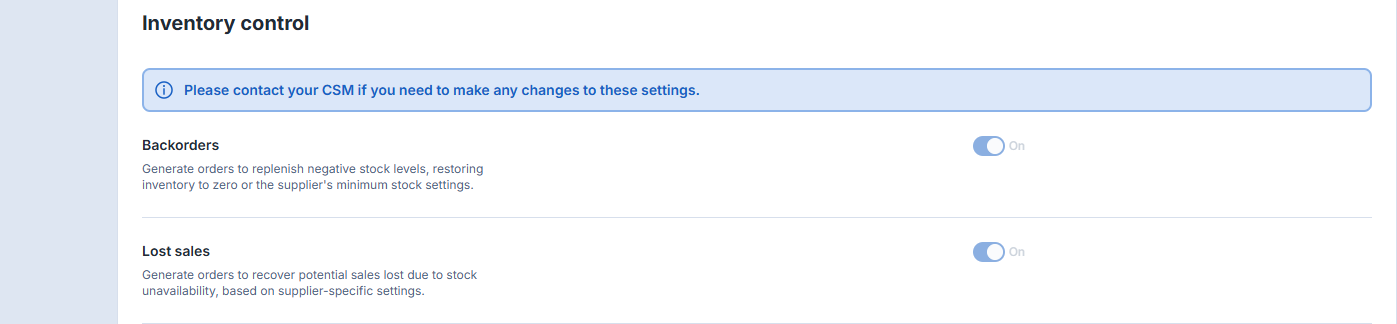
- Account-level inventory settings: Backorders and Lost sales appear under Settings → Additional settings → Inventory control. Contact your Customer Success Manager (CSM) if these settings need changing.
- Supplier-level controls: Backorders and Avoid lost sales appear under Suppliers → select a supplier → Agenda → Emergency Orders, where available.
An account-level setting shown as On does not mean every supplier's corresponding control is also On. Check the individual supplier's Agenda. The illustrations below show example states, not recommended values for every account.
Where to find it
Check the account settings
- Open Settings.
- Expand Additional settings and select Inventory control.
- Review Backorders and Lost sales.
- If these settings need changing, contact your Customer Success Manager (CSM), as instructed on the page.
Account-level inventory settings: check Backorders and Lost sales here. Contact your CSM if changes are needed. Both are On in this example.
Review a supplier's controls
- Open Suppliers and select the intended supplier.
- Open Agenda.
- Under Emergency Orders, check Backorders and Avoid lost sales.
- Select Edit to review the available configuration options if you have editing access.
Supplier Agenda: review Backorders and Avoid lost sales under Emergency Orders. This example shows both controls Off and the message “We never adjust the agenda for the supplier.”
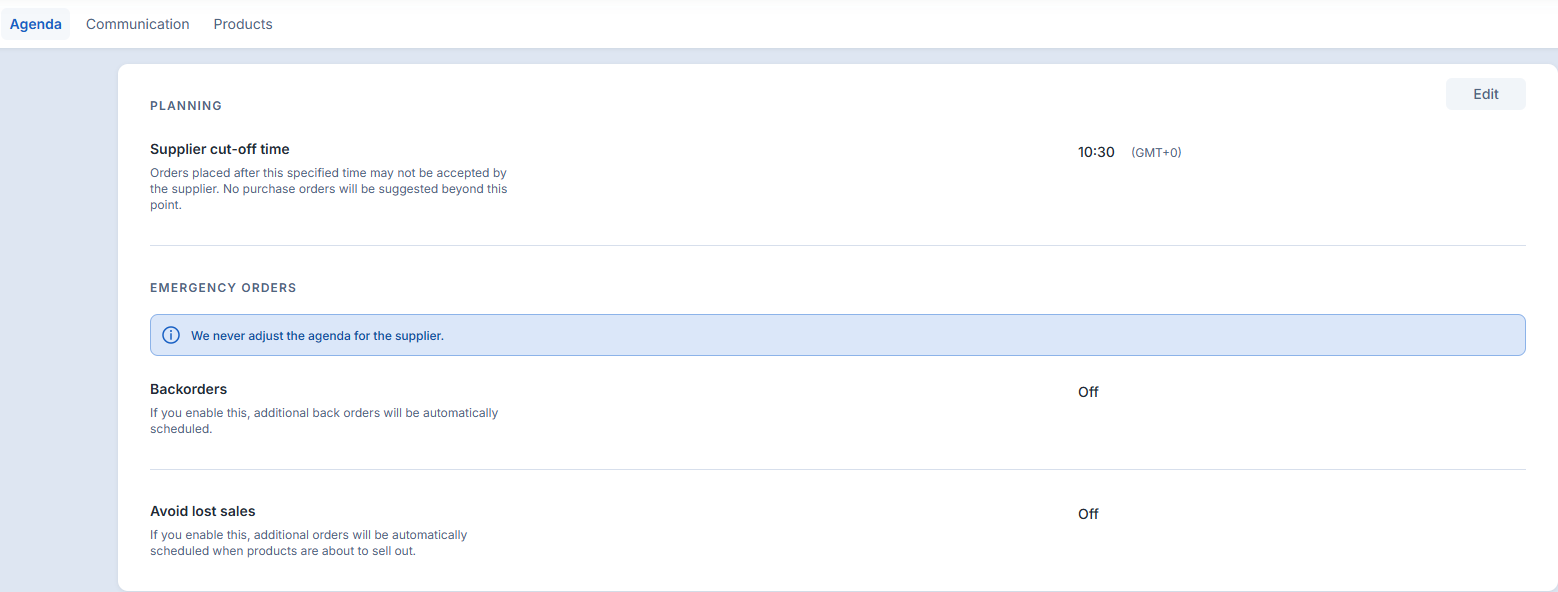
The Supplier cut-off time belongs to Planning; it is not a reaction value or monetary threshold. Available controls and editing access can vary by account and product version.
How Optiply uses it
Reaction values are multipliers that adjust how Fixed order costs and Minimum order value contribute to the planning threshold. They are not percentages to add to each product's order quantity.
- A higher multiplier increases the corresponding contribution when that cost or value is above zero.
- A lower multiplier reduces that contribution.
- The displayed monetary result helps you review the effect before saving.
A higher reaction value does not necessarily mean a faster response or a larger order. Other purchasing conditions still apply, including eligible products and supplier-product links, stock and demand, supplier timing, order constraints, and account settings. Lost-sales decisions also consider whether the additional order is worthwhile.
For related supplier inputs, see Fixed order costs and Minimum order value.
What to do
Configure the controls
Before editing, check the intended supplier and review its ordering costs and minimum order value. You need editing access, and the relevant options must be available for your account.
- In the supplier's Agenda, select Edit.
- Review or enable Backorders and/or Avoid lost sales, where available.
- Review the current reaction values and the displayed monetary result.
- Adjust the relevant reaction values for your purchasing needs.
- Check the monetary result before selecting Save.
- Reopen the settings to confirm that the intended values were retained.
The numeric reaction inputs allow values from 0 to 9.9, with 0.1 steps. Do not choose the highest or lowest value simply because it is allowed. Feature availability and Lite restrictions can affect which controls are editable.
The illustrations show the account settings and the supplier's read-only Agenda, not the reaction-value editor. Use the options and validation shown in your account. If the meaning of an input is unclear, ask your CSM or Optiply contact before saving.
Troubleshooting
- Account-level settings need changing: contact your CSM; the Inventory control page directs you to do this.
- Supplier controls are missing or read-only: ask an authorized account administrator or Optiply contact to check availability and your editing access.
- Unsure which reaction value to enter: review the supplier's fixed order costs, minimum order value, and purchasing needs. Ask for clarification rather than selecting a value at random.
- A change does not appear after saving: reopen the settings, check the supplier and displayed values, and follow any validation or error message before trying again.
- No purchase proposal appears after a change: these controls are only part of the planning decision. Check the related supplier and product settings; do not assume a saved value guarantees a proposal.
Common misreadings
- A reaction value is not a number of units to order.
- A displayed threshold does not guarantee an order or a particular order quantity.
- Account-level On does not mean every supplier's control is On.
- This article covers the controls in a supplier's Agenda. Other backorder settings may have a different purpose.
- Do not assume a particular stock level or timing always triggers an order.