

The simple connection exchanges buy orders and receipt information. The full connection also imports products, suppliers, supplier products and sales orders.
Before you connect Monta
Open the intended Optiply account and prepare your dedicated Monta API credentials. Use the API user's credentials, not your personal Montaportal sign-in.
Agree the product source, supplier matching and synchronization options with Optiply Support. In the simple connection, supplier identifiers need matching. The full connection imports Monta supplier identifiers.
Do not copy the option switches from an example. Their displayed state is not a recommendation for your account.
Steps to connect Monta
- Open Settings in the intended Optiply account.
- Under Data management, open Integrations.
- Wait for the source lists to load.
- Select Add a source.
- Choose Montapacking.
- Select Next.
- If the dialog offers Contact us, select it for Support-assisted setup.
- If the credential form appears, enter the dedicated Monta API username.
- Enter the corresponding API password in Password.
- Confirm the agreed synchronization options with Support.
- Select Connect when the form is complete.
- Return to Integrations and check the linked-source list.
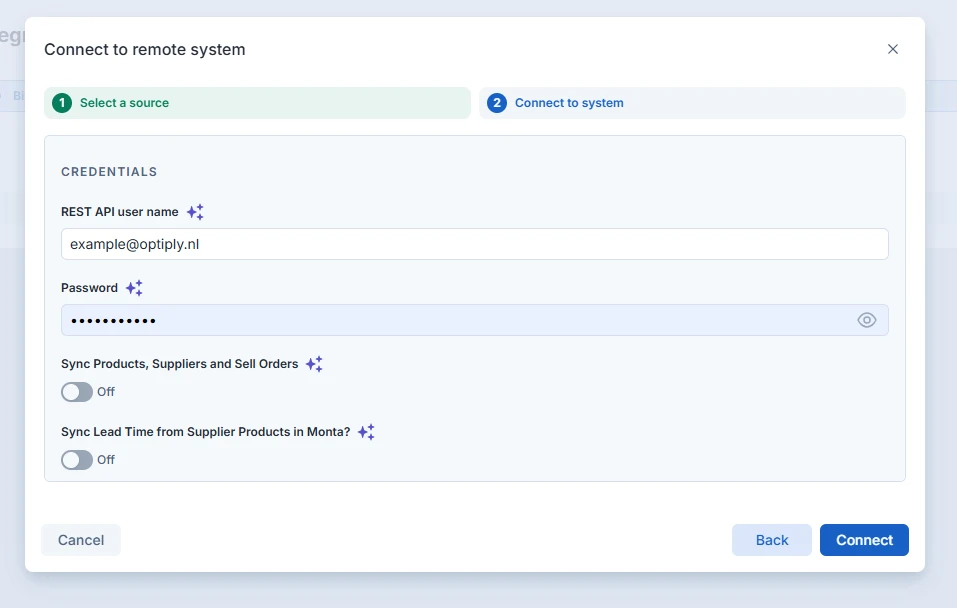
The screenshot contains an example username. Enter your own API username. The username label can appear as REST API user name or Username.
Fields in the Monta connection form
| Field or label | Meaning |
|---|---|
| REST API user name / Username | Dedicated Monta API username. |
| Password | Password for that API user. Keep it private. |
| Sync Products, Suppliers and Sell Orders | Scope choice to agree with Support before connection. |
| Other synchronization options | Settings for your agreed flows, not defaults to copy from the screenshot. |
| Connected | A linked source in Optiply, not confirmation that individual records transferred. |
What you see when connecting Monta worked
The linked-source list shows the source with Connected after it is linked. Check agreed product or order examples separately with Support.
Creating an API user in Montaportal does not produce this label. Submitting the Optiply form and verifying record transfer are separate checks.
Limits of connecting Monta
Your enabled flows depend on the agreed configuration. Neither a connected label nor an example switch confirms which flows run.
Keep product, supplier and order matching consistent before the first transfer. Do not change identifiers or connection scope to investigate a missing order.
If connecting Monta did not work
Wait if Add a source is disabled while source lists load. If Montapacking is missing or connection fails, contact Optiply Support.
Provide the step reached, the source name and the visible error text. Exclude API credentials and identifying screenshots. Ask Support to confirm the connection and intended flows.