

Before you connect Amazon Redshift
Identify the intended AWS Region and Redshift environment. For a provisioned cluster, use its cluster endpoint. If you use Redshift Serverless, ask your administrator and support to confirm the workgroup connection details and supported setup before proceeding.
Agree whether the connection only imports data or also writes outputs. A read-only import identity must not receive broad write permissions for convenience. Your administrator controls database access and the approved network route.
Steps to connect Amazon Redshift
Find the provisioned-cluster connection details
- Open the Amazon Redshift console in the intended AWS Region.
- Choose Clusters.
- Select the intended cluster to open its details.
- Under General information, locate the JDBC URL or ODBC URL.
- Copy the appropriate connection string for your administrator to review privately.
- Ask your administrator to confirm its hostname, port and database separately.
- Confirm the source schema and approved database identity with your administrator.
Use the Redshift endpoint hostname, not a cluster node's IP address. Do not paste an entire connection URL into Host. AWS explains this route in Finding your cluster connection string.
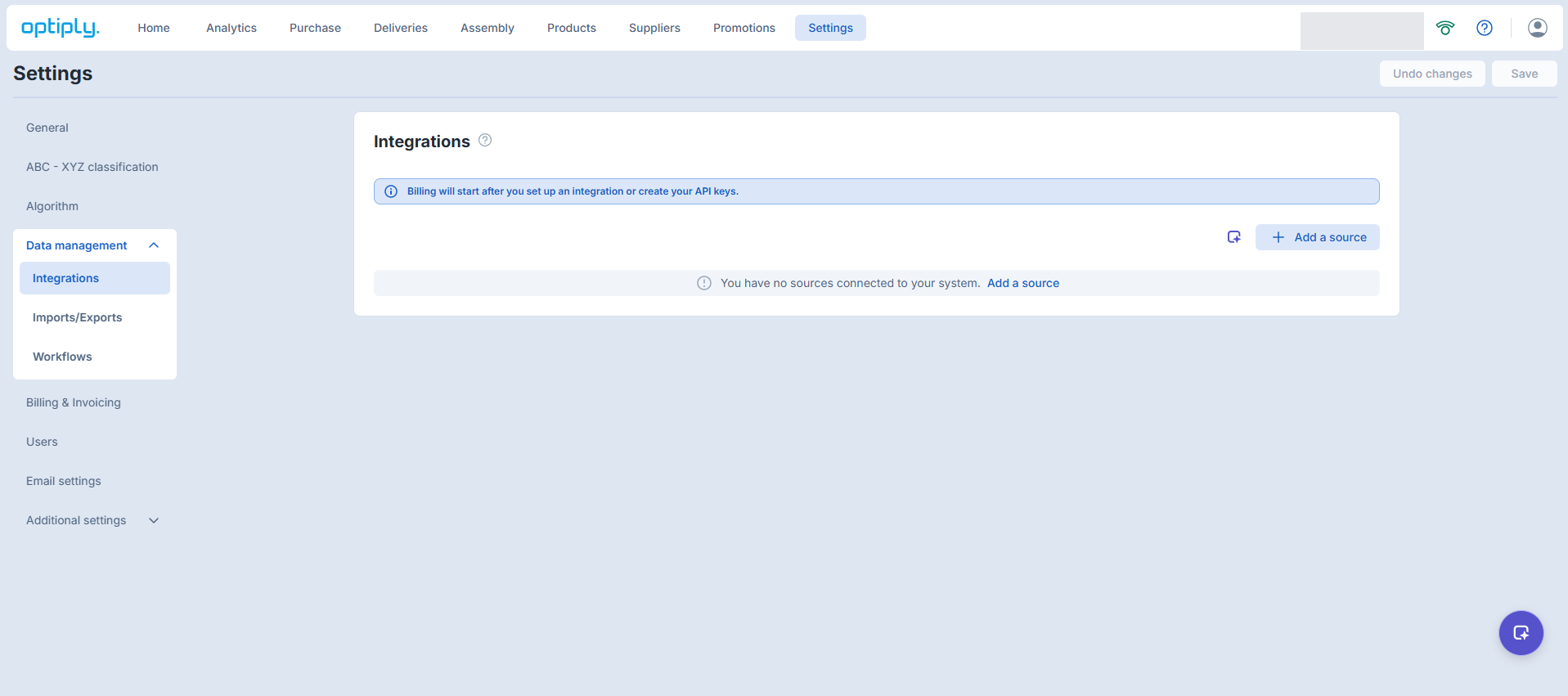
Select AWS Redshift in Optiply
- In Optiply, open Settings → Data management → Integrations.
- Wait for the source lists to finish loading.
- Choose Add a source.
- Search for Redshift.
- Select AWS Redshift under Database when it appears.
- Choose Next to open Connect to system.
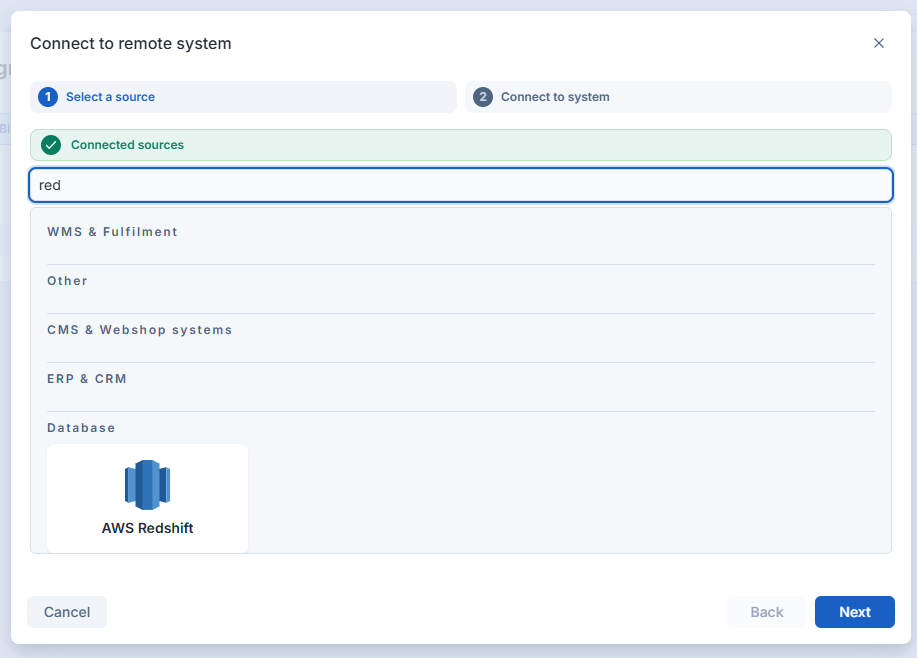
Complete the offered connection route
- If a credential form appears, review its fields against your approved endpoint, database, schema and identity.
- Enter credentials only through that form.
- When the settings are confirmed and Connect is available, choose Connect.
- If Contact us is offered instead, choose it or contact support to continue setup.
- For that support route, review the endpoint, enabled directions and permissions before activation.
- Return to Settings → Integrations and check the linked source.
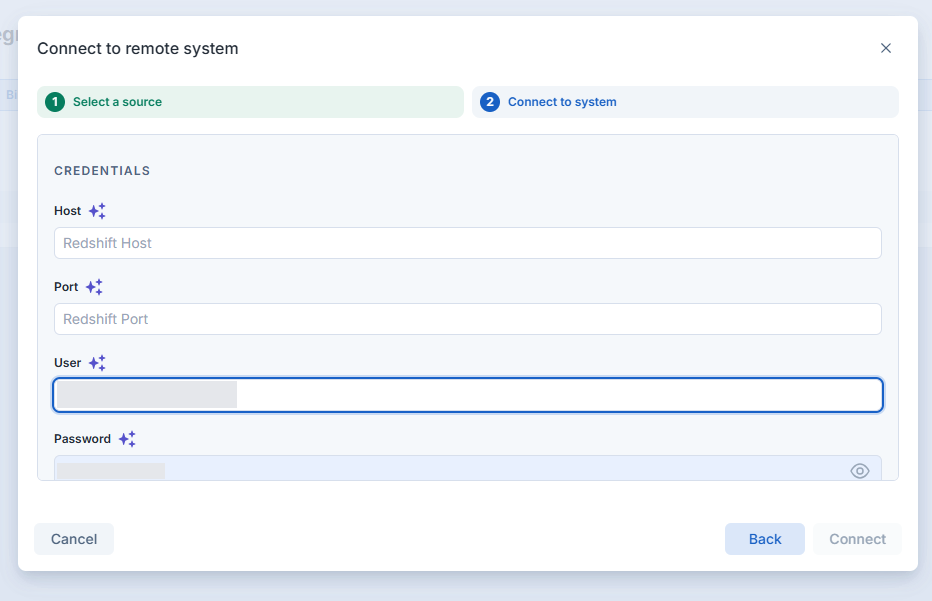
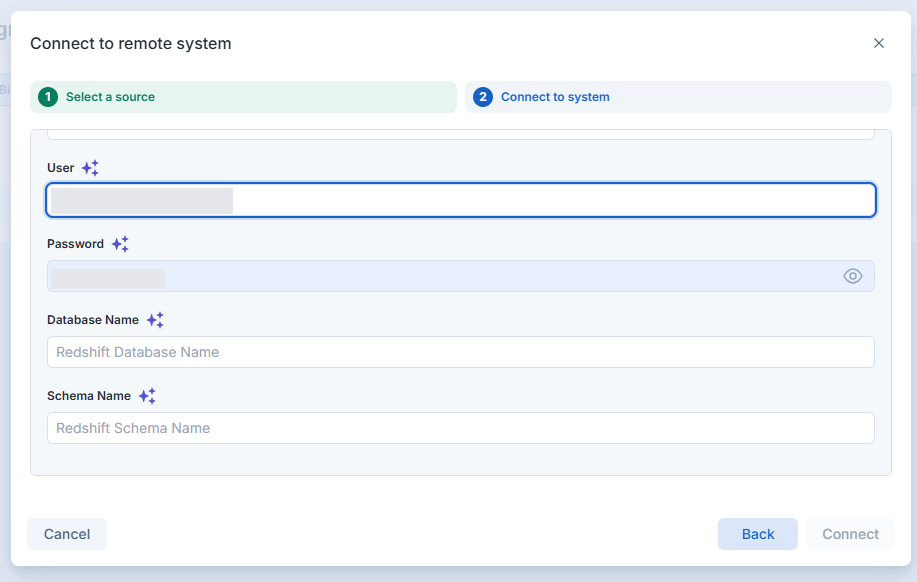
Fields in the Amazon Redshift connection form
| Field or status | Meaning |
|---|---|
| Host | The Redshift endpoint hostname. |
| Port | The port configured for the intended endpoint. |
| User | The approved database connection user, not an AWS console email by assumption. |
| Password | That connection user's private password. |
| Database Name | The database the connector must access. |
| Schema Name | The namespace containing the agreed source objects. |
| Connected | The linked-source status, separate from transferred-record checks. |
Use the table only for matching fields when shown. Support confirms the actual credential method for your account. The screenshots show field labels, not reusable credentials.
What you see when Amazon Redshift connection worked
The linked-source list shows the source name and Connected. Then check the intended products, orders or receipts with support. Finding an endpoint or opening a form does not activate the connection.
Limits of connecting Amazon Redshift
If your account reaches its integration limit, the dialog routes you to support instead of a credential form.
Source availability, enabled entities and synchronization schedules require agreement for your account. AWS console access does not grant database access. A database login from an administrator's computer does not confirm the connector's network access.
If Amazon Redshift connection did not work
If Add a source is disabled, wait for the lists to load. If the source is absent or the linked source does not appear after setup, contact support.
For connection errors, ask your administrator to verify the endpoint, port, database, schema, identity and approved network rules. Do not make the cluster public or allow every network address to bypass an error. Send support the step and sanitized error, never the password or unmasked login fields.
Questions customers ask about the Amazon Redshift connection
Does Optiply have an Amazon Redshift connector?
Yes, Optiply lists Amazon Redshift as AWS Redshift under Database when you choose Add a source in Settings → Data management → Integrations. If AWS Redshift is not listed, contact Optiply Support.
Where do I find my Redshift hostname?
In the Amazon Redshift console, open Clusters, select the cluster and find the JDBC URL or ODBC URL under General information. Enter only the endpoint hostname in the Optiply Host field, not the whole URL or a node IP address.