

Use the intended store and Optiply account. The token identifies API access for that store. The store hash identifies the store itself.
Before you connect BigCommerce
Ask your BigCommerce administrator to confirm the API account and required permissions with Optiply Support. Use only the access needed for the agreed integration. Do not grant every permission to remove a connection error.
A store-level API account differs from an account-level credential or a new application in the Developer Portal. Do not substitute those routes for the agreed connection.
Keep the access token private. Do not place it in support messages, shared documents or screenshots.
Steps to prepare BigCommerce API access
- Sign in to the intended BigCommerce store control panel with your authorized administrator account.
- Open Settings.
- Open Store-level API accounts.
- Ask the administrator to prepare the agreed API account and minimum required access.
- Obtain its access token through your approved secure credential process.
- Identify the store hash in the account's API path.
In the API path segment /stores/{store_hash}/v3/, the store hash is the value after /stores/. Enter only that segment in Optiply, not the entire URL.
BigCommerce's API account documentation explains store-level credentials and access scopes. Confirm the permissions before account creation because store-level OAuth scopes cannot be edited afterward.
Steps to connect BigCommerce in Optiply
- Open Settings in the intended Optiply account.
- Under Data management, select Integrations.
- Wait for the source lists to load.
- Select Add a source.
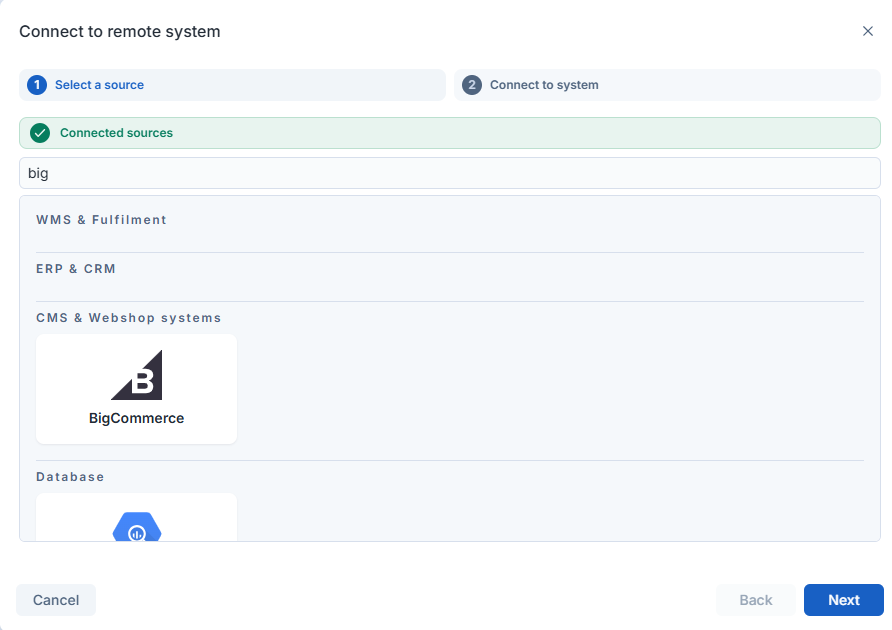
- Search for BigCommerce under CMS & Webshop systems.
- Select BigCommerce.
- Select Next to open Connect to system.
- If the dialog offers Contact us, select it for Support-assisted setup.
- If the credential form appears, enter the access token in Access Token.
- Enter the store hash in Store Hash.
- Review Pull all Sell Orders for the agreed order scope.
- Select Connect when offered after the required fields are complete.
- Return to Integrations and check for the BigCommerce source with Connected.
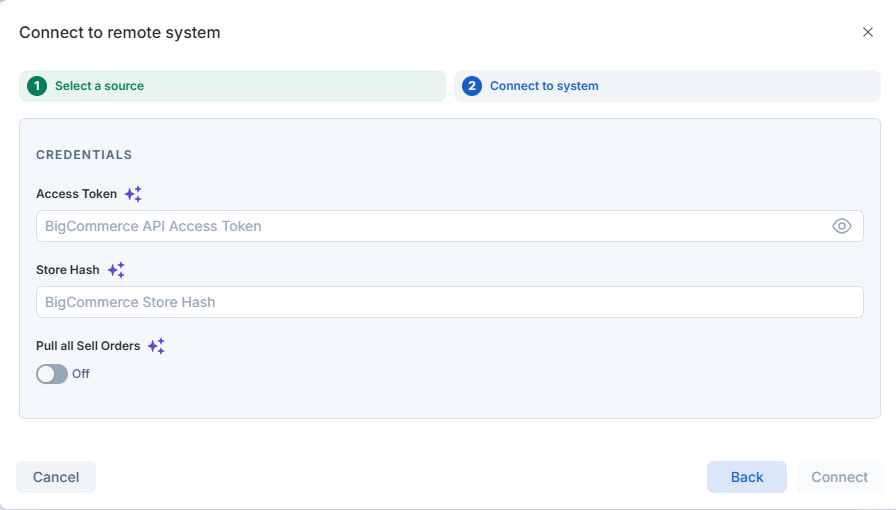
The example shows Pull all Sell Orders off and empty credentials. It is not a completed connection or a recommendation for your store.
Fields in the BigCommerce connection form
| Field or label | Meaning |
|---|---|
| Access Token | BigCommerce API access token, not the client ID or client secret. Keep it secret. |
| Store Hash | Store identifier from the API path, not the token, store name or full URL. |
| Pull all Sell Orders | Standard selection imports Completed orders. Broader selection includes other non-cancelled statuses. |
| Connect | Submits the offered connection form. It is unavailable until required fields are complete. |
| Contact us | Support-assisted route when offered instead of direct connection. |
| Connected | Linked-source state, separate from successful product or order transfer. |
What you see when BigCommerce connection worked
BigCommerce appears in the linked-source list with Connected. Then check the expected products and sales orders against the mapping guide.
For products, compare a variant ID rather than the parent product ID. For sales, compare the selected order statuses and matched variants. These checks distinguish credential setup from data-selection issues.
Limits of connecting BigCommerce
The standard sales selection is Completed only. Broader selection still excludes Cancelled, Refunded and Declined orders from creation. Existing orders and lines do not have a general update path.
The connection does not promise a first-transfer time or connector availability in every account. Contacting Support alone does not create a connected source.
If BigCommerce connection did not work
If Connect is unavailable, check required fields and distinguish the token from the store hash. If the connector is missing or credentials fail, contact Support with the connector and failed step, without the token.
Ask the administrator to verify the correct store and agreed API permissions. Do not delete an API account as a trial repair. Deletion is irreversible and can remove webhooks associated with that account.
If credentials need replacement, coordinate the new account and connection update with the administrator and Support. If only an order is missing, check its status and variant matching before changing credentials or resending it.