

Example: 24 units sent to Exact Online
For the same Optiply order quantity of 24 units:
- Confirmed conversion of 12 units per purchase unit: Exact receives
24 / 12 = 2purchase units. - No division applied: the divisor is 1, so Exact receives
24 / 1 = 24.
The divisor is the number the Optiply quantity is divided by. A lot size of 12 does not, by itself, mean the order quantity is divided by 12. If an imported PurchaseLotSize is 12 but the export has no unit conversion, the second case applies.
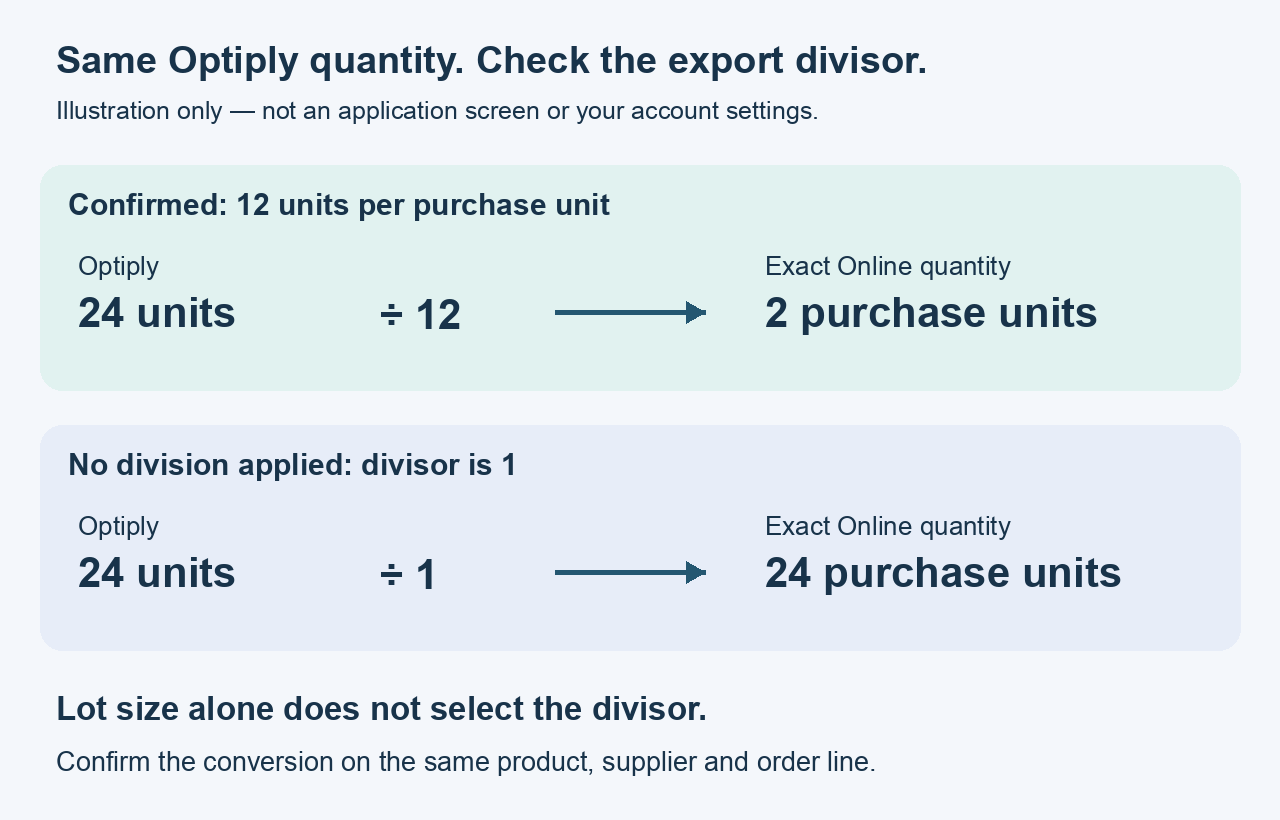
*Illustration only—not an Exact or Optiply screen. Confirm the divisor for your order line.*
Before you compare purchase-unit quantities
Use an existing order line. Gather:
- The same product and supplier in both systems. Different suppliers can use different purchase units and factors for the same product.
- The Optiply quantity, the Exact quantity and the unit each represents.
- The line's
PurchaseUnit,PurchaseUnitFactorand anyPurchaseLotSize, if you have them.
Confirm the applicable unit-conversion settings, whether Pull Lot Size is enabled and the export divisor. Ask Optiply Support to check these if you cannot confirm them; the imported lot size alone is not enough.
Steps to compare an Optiply order line with Exact
- Match the line. Compare the same product, supplier and order line, rather than quantities from different orders.
- Check the units. Record what the Optiply quantity and the Exact purchase-unit quantity each represent.
- Confirm the conversion. Identify the divisor applied to that export line. If it is unclear, ask Optiply Support before calculating or changing a setting.
- Compare the quantities. Divide the Optiply quantity by the confirmed divisor and compare the result with the Exact line. Keep the units and divisor alongside your comparison.
Do not resend an order to test a conversion.
What you see when the quantity comparison worked
You can explain the imported lot size and exported purchase-unit quantity separately, using the same product, supplier and order line. Matching quantities confirm this comparison, not successful order delivery or supplier acceptance.
Technical reference: how the conversion is selected
The purchase-unit mapping treats imported lot size and exported quantity separately.
Imported supplier lot size
With lot-size import enabled, PurchaseUnitFactor supplies the supplier-product lot size unless the PurchaseLotSize option is selected and that field is present. Missing values fall back to 1. Applicable purchase-unit conversion can multiply the imported lot size; values are converted to whole numbers and a non-positive final lot size becomes 1. With lot-size import off, lotSize is omitted from the import payload.
Stock conversion is separate: unit_filter and unit_factors use the stock unit and its own factor. Do not assume PurchaseUnitFactor is the stock conversion factor.
Exported purchase-unit quantity
The calculation is QuantityInPurchaseUnits = quantity / divisor. With lot-size export disabled, the divisor is 1.
For lot size from PurchaseLotSize:
- Without unit conversion, the export divisor is 1.
- When unit conversion is enabled, a nonempty conversion list of units with factors other than 1 is configured and the product data includes a
PurchaseUnitcolumn, only matching purchase units retain their lot-size divisor; other lines use 1. - Do not extend that condition to an empty list or missing column. Confirm the actual divisor for those cases.
Fields in the purchase-unit reference
| Field or option | Meaning |
|---|---|
PurchaseUnit | The supplier's purchase-unit label used to match a configured conversion. |
PurchaseUnitFactor | The usual source for imported supplier lotSize when lot-size import is enabled. |
PurchaseLotSize | An alternative imported lot-size source; not automatically the export divisor. |
Optiply lotSize | The supplier-product order multiple after applicable import conversion. |
Optiply quantity | The order-line quantity before division into Exact purchase units. |
Exact QuantityInPurchaseUnits | The outbound quantity divided by the applicable export divisor. |
unit_filter / unit_factors | Separate conversion settings; the unit and factor must match the quantity being checked. |
Limits of using purchase-unit conversions
Pull Lot Size and Pull Minimum Purchase Quantity control different fields. A minimum purchase quantity is not a purchase-unit divisor. Do not change units, lot size or import settings based only on the example above.
Incoming receipts are a separate calculation. Their conversion uses the purchase-order line's quantity ratio, not necessarily today's supplier lot size. Do not apply the outbound example directly to a receipt.
If the purchase-unit comparison did not work
If a factor is zero, missing or cannot be confirmed, stop the comparison and contact Optiply Support. Ask them to check the line's export settings before you change a setting or resend an order. Supply the field names, units and redacted quantities from the same order line, including the divisor if known.
Use the Exact Online Trade setup guide's Support handoff for the connection details and secure access guidance.