

Before you connect ChannelDock
Open the intended ChannelDock account and the matching Optiply account. Ask your ChannelDock administrator for access if you cannot manage API keys.
Agree the data flows and stock locations with Support before connection. The ChannelDock mapping guide explains the incoming fields and optional stock rules.
Keep keys private. Enter them only in the connection form or the secure setup route agreed with Support.
Steps to connect ChannelDock
Create ChannelDock credentials
- Sign in to the intended ChannelDock account.
- Open Settings → API & Webhooks.
- Under API keys, select Generate new API keys.
- Give the credentials a clear description, such as Optiply.
- Store the API key and API secret securely.
- Ask Support to confirm the endpoint permissions needed for your agreed flows.
ChannelDock recommends separate credentials for each integration and limited endpoint permissions. See the official ChannelDock API setup instructions.
Prepare the Optiply connection
- In Optiply, open Settings → Integrations.
- Wait for the source lists to load.
- Select Add a source.
- Search for ChannelDock under WMS & Fulfilment in Select a source.
- Select Channeldock and choose Next to open Connect to system.
- Enter the key in Your API Key and the secret in Your API Secret.
- Contact Support before submitting the connection details.
If Contact us is offered, use that control. Otherwise, use Optiply Support.
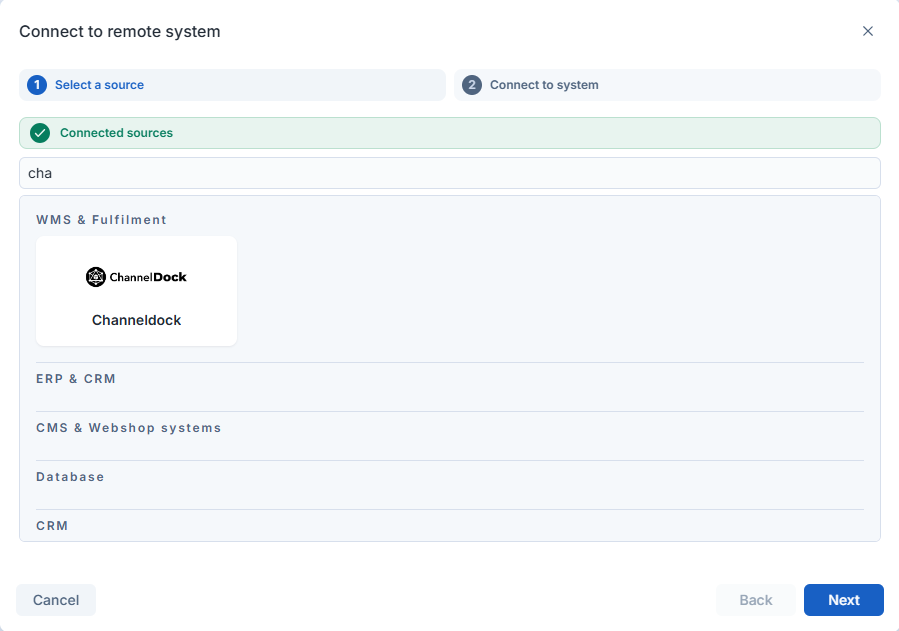
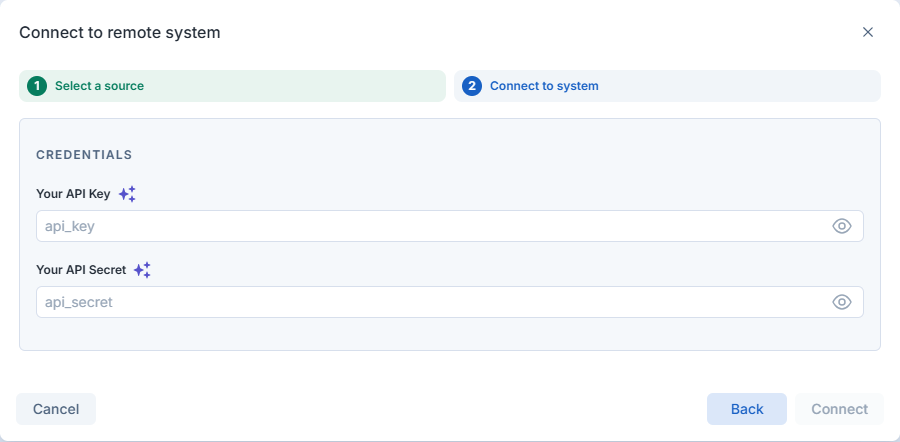
Tell Support the intended account, required flows, stock locations and the step you reached. Do not include keys or secrets in messages or screenshots.
Check the linked ChannelDock source
- After setup, return to Settings → Integrations.
- Check the intended source for the Connected label.
- Compare an agreed product or order in both systems.
Fields in the ChannelDock connection form
| Field or control | What you use it for |
|---|---|
| Your API Key | The key created for this integration |
| Your API Secret | The matching secret, not another key |
| Contact us | Setup assistance when offered |
| Connected | A linked source, separate from record transfer |
What you see when ChannelDock setup worked
The intended source appears as Connected after setup succeeds. Your agreed record checks confirm data arrival separately.
Limits of ChannelDock setup
Connector availability can differ by account. ChannelDock applies API limits per key. Support must check connection timing and required permissions for your account.
The additional outbound-delivery import option still sends data from ChannelDock to Optiply. It is not an Optiply-to-ChannelDock order export.
If ChannelDock setup did not work
- Add a source disabled: wait for the lists to load, then contact Support if it remains disabled.
- Connector missing: contact Support instead of selecting another connector.
- Key creation unavailable: ask your ChannelDock administrator for help.
- Credentials rejected: check the key-secret pair and intended account through the secure setup route.
- Rate-limit error: ask Support to check the limit and connection timing before another attempt.
- Source missing or data absent: ask Support to check linking and record transfer separately.