

Home has different layouts. If you see Needs you, Handled, and Manage alerts (called Manage insights in earlier layouts), use the insight tasks below. If you see the older Purchasing and Data management task cards, use the legacy task-card instructions. The presence of one layout does not mean that every webshop has the other layout or the same controls.
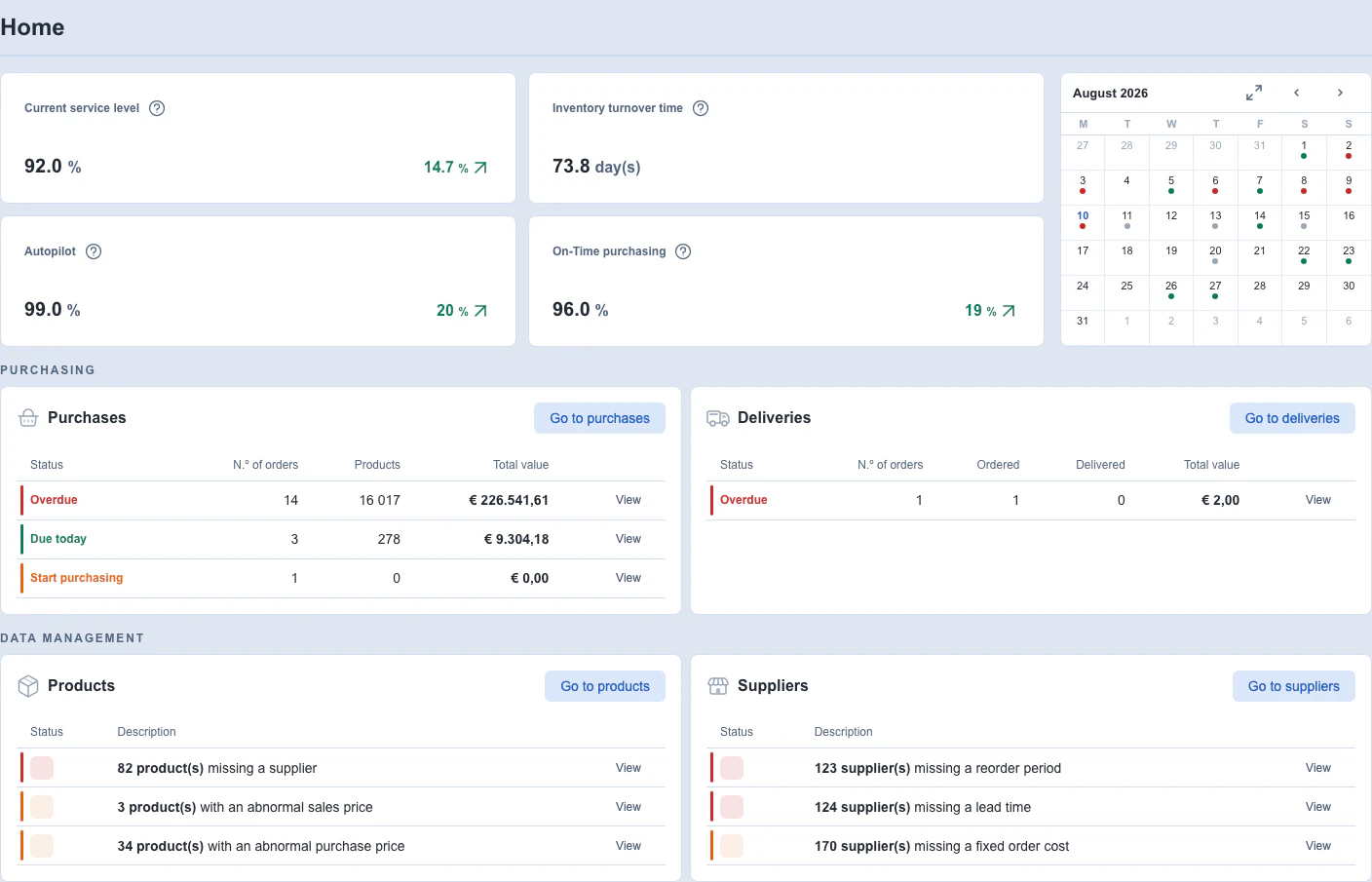
Legacy task-card layout from an Optiply test webshop. Values and task totals are illustrative; this image does not show the Needs you layout.
Review Needs you and its supporting details
Purpose
Review an insight, distinguish the summary from its supporting records, and choose the appropriate follow-up without treating a displayed action as a completed business fix.
Prerequisites
- Use a webshop where the Needs you layout is available and select the intended webshop.
- Wait for loading to finish. Not computed yet means results have not been computed; it is different from a computed list with no current entries.
- Use only the details and actions shown to your user. Available controls are not a statement of every user's permissions.
Steps
- Read Needs you for items requiring attention. Read Handled, with the Last 24 hours label beside it, separately for recorded activity. This is a rolling 24-hour window, not since midnight; it is not a certificate that every underlying issue is fixed.
- Expand the relevant group. Group titles, order and initial collapsed state can vary; an additional group can have no title. A collapsed group does not remove its risk from the summary.
- Read the card's title, count, available values and explanation. Select the alert title to open its details before deciding what to do. When How it's counted is present, expand it to read the supplied counting explanation. Why this matters is a separate explanation shown only when provided; neither section is guaranteed for every insight.
- If supplier rows are shown, select the relevant supplier. Use Open rows only where offered, then Load more for additional returned rows. Use the panel's Back control to return to the supplier details.
- If the panel instead shows Products, Suppliers, Purchase orders, Order moments or Categories, review the read-only sample. A table shows supplied figure columns and row notes; a simpler list remains without columns. Showing x of N means x of the stated N records are loaded; earlier layouts say More not shown. This is supporting evidence, not a complete inventory. Some insight kinds have no entity list.
- Before using Resolve, hover over the button or move keyboard focus to it to read its action description when one is provided. Then use Resolve where offered to open the assistant with the insight context. In supplier details, the supplier's Resolve action focuses the conversation on that supplier. Review the conversation and any proposed action separately; opening it does not confirm that an order, stock change or other business action succeeded.
- Verify any relevant changes in the detailed Product, Supplier, Purchase or Delivery workflow. Return to Home to review the refreshed state. Use Show all where offered in compact lists such as Handled; it expands the display, not the business scope.
Fields and columns
- Needs you / Handled — current attention items versus recorded activity. Do not infer overall health from an empty list.
- Group title — categories of attention items; not every layout has the same grouping or a three-card display limit.
- Count and entity label — Products, Orders or Items as labeled; this replaces the older Open since tile. The heading can count more than the visible sample. When the count is one, its tile is hidden only without listed supplier or entity rows; with supporting rows it remains visible. This is display logic, not a changed count calculation.
- Product SKU / EAN — when included in the insight details, SKU, EAN or both appear beneath the product name in either the table or list. Blank or missing codes have no code line. The panel does not automatically look up missing codes.
- Supplier row description and metadata — supplier drill-down can show an additional description and labeled text or date details beneath a row title, with the remaining figures in table columns. Missing metadata is omitted; date text that cannot be formatted is left as supplied. Use the labels and units shown rather than assuming every supplier has the same fields.
- x of N handled — counts distinct whole alerts handled in the same rolling last 24 hours, including alert-linked Assistant actions, not the number of chats, suppliers or activity-log entries. A supplier-only completion does not count as a whole alert while that alert remains open. N combines the handled count with the returned open-alert total; it is not a guarantee of an exhaustive webshop inventory or a permanent fix.
- Feed total and table columns — use the totals, column labels and units shown in the current view. The feed total is not calculated by adding only the cards currently loaded, and supplier or detail tables need not have the same columns for every insight. A loaded-versus-total row count is not a complete list of records.
- Risk / tied-up value — different monetary scopes. Do not add every displayed value or currency, or multiply every daily value by a fixed number of days, to reconstruct the headline total. Collapsing a group does not change the scope of that total.
- Unavailable or missing value — not a calculated zero. A zero can be hidden in a summary display, so an absent amount alone is not proof of zero risk.
- Partial pricing and amount notes — the displayed value may omit records with missing pricing; do not treat it as a complete valuation. When an amount has a coverage note beneath it, read that note separately from the amount label. The panel displays the supplied amount and note; it does not calculate a missing note or recalculate the amount from the visible sample.
- Urgent — a risk-card priority label where shown, not a label promised for every card.
- Overdue — in a supplier summary, a maximum derived from the returned sample is not necessarily the maximum across every affected record.
- Open rows / Load more / Back — supporting-row navigation, not resolve or dismiss actions. Individual read-only sample entries do not have their own resolution controls.
- How it's counted / Why this matters — optional explanations for the current insight. Read the supplied text; the section label alone does not establish a formula or lookback period.
Expected result
You have reviewed the insight's displayed scope, supporting rows or sample, and the appropriate detailed workflow or assistant conversation. A subsequent business change still needs its own result verification.
Limitations
- Insight and row availability depends on the layout, webshop, permissions and returned data. No fixed recalculation schedule or universal completeness is promised here.
- Needs you can show all available cards in collapsible groups while Handled remains compact. Older layouts may offer different expansion controls.
- Values in different currencies are displayed context, not evidence of conversion or amounts that can be summed together.
- Resolve is different from Mark as resolved. Neither opening the assistant nor a recorded completion proves a permanent business fix.
Errors and recovery
- If the insight list fails to load, use Retry when offered and confirm the selected webshop before acting.
- If supporting rows fail, use their Retry control. If they become unavailable, return to the details and verify the relevant records in the detailed module; do not interpret unavailable rows as zero affected records.
- If a computed list is empty, distinguish that state from Not computed yet. Do not change settings solely to force an insight to appear.
- If information remains missing or contradictory, keep the displayed scope and use the normal support channel rather than assuming that a vanished card proves resolution.
Open supporting activity from Handled
Handled shows the Last 24 hours: a rolling 24-hour window, not activity since midnight. It lists one entry per handled alert and one entry per chat. A chat entry shows the chat's name, or Chat plus its time when it has no name yet, with what was done underneath. For example, Updated 4 suppliers: lead time is one chat entry, not four supplier entries. A change made outside a chat can have its own activity entry. The x of N handled count uses the same time window but counts whole alerts, not chats or activity entries.
Where See more is offered, select it to open the alert for an alert entry or the conversation itself for a chat entry. You can open only your own conversations. An individual change linked to an alert still opens that alert; not every entry offers a link.
Wait while Loading conversation... is shown. If the conversation cannot be loaded, the message Couldn't load this conversation. offers Start a new chat. Use that choice when you want a new conversation; it does not restore the failed conversation or confirm that the earlier business action succeeded. This option does not grant access to another user's conversations.
Dismiss, mute and manage insights
Purpose
Choose whether to dismiss an insight, mute future detection within the offered scope, or record completion, and find the separate management lists afterward.
Prerequisites
- Use the Needs you layout and review the insight and supporting evidence first.
- Use only the action controls offered to your user. This guide does not grant access or provide a way around unavailable controls.
- Decide whether the intended action concerns the whole insight or an available supplier-specific row.
Steps
- Open More actions (⋯) on the alert card or in its details. Read the offered labels and descriptions, then choose Mark as done, Dismiss, or Mute where available. Resolve remains a separate action. Earlier layouts can show a choice dialog and a completion label such as Mark as resolved; select Confirm when that dialog asks for confirmation. Not every card or supplier offers every choice, and the order can differ.
- Use Dismiss for the current insight, rather than treating it as a mute. Mark as done (or Mark as resolved in an earlier layout) requests completion; it is not the same as Resolve, which opens the assistant. A supplier-specific completion choice can also be available in the supplier details. Use only the choices shown for that card or supplier; they need not be the same.
- For Mute, review the scope shown before confirming. The main-card mute applies to that insight's detector for the webshop; do not expect a Product-identifier or reason form. Supplier-specific mute actions, where offered in details, are separate.
- Review the displayed result. For a mute, follow the message shown about when it takes effect rather than assuming a nightly update or immediate disappearance. Do not repeatedly confirm it because the card remains visible. After a successful completion, Needs you and Handled refresh; verify the resulting state rather than treating the click as proof of a business correction.
- Open Manage alerts (called Manage insights in earlier layouts) from the Needs you header control. Review Dismissed insights and Muted insights separately; this is not a list of every completed or hidden item.
- Use Restore for a dismissed insight where offered. In the layout with collapsible Needs you groups, Restore in Muted insights removes the mute; earlier layouts label that mute action Lift. Read the list heading so you know whether you are restoring a dismissed item or removing a mute.
- Use Back to categories or the panel's Back control to return. If a dismissed item offers Resolve, it opens the assistant rather than marking the issue as completed. Verify the resulting state and any business work separately.
After a successful dismiss, a brief Undo message lets you request restoration. A successful immediate whole-alert mute can offer the same brief Undo to remove the mute. A mute that takes effect at a later update instead keeps its notice; do not expect immediate Undo or a fixed processing time. If Undo expires or fails, use Manage alerts to review the appropriate dismissed or muted list and its available restore control. Failed dismisses do not offer Undo.
When an action removes the card you were using with the keyboard and focus would otherwise be lost, focus moves to the next visible alert title, then the previous one if needed, or the Needs you heading when none remain. Focus you have already moved elsewhere is left alone.
Fields and columns
- Dismiss — current-insight handling, distinct from a mute.
- Mute and scope — the offered future-detection scope; main-card and supplier-specific actions are not interchangeable.
- Mark as done / Mark as resolved — the current or earlier completion label; a request, not proof of a permanent correction.
- Dismissed insights / Muted insights — separate lists with different restoration effects.
- Restore / Lift — Restore in Dismissed insights restores a dismissed item. Restore in Muted insights removes a mute in the collapsible-group layout; earlier layouts use Lift for that mute action.
- Resolve — starts an assistant follow-up, not a direct certificate of successful execution.
Expected result
The selected handling request and any confirmation are visible in the current workflow. Check the appropriate management list and underlying records instead of assuming that the business problem has been fixed.
Limitations
- Resolve, Dismiss, completion, Mute and Restore appear only when offered for the current item and your access. A missing control is not evidence that every user or account has lost the action; no universal view-only blocking rule is established by this guide.
- Mutes do not promise immediate disappearance or a nightly processing time.
- Restoring or lifting a mute does not guarantee immediate recomputation or a successful business correction.
Errors and recovery
- If no action is available, use the read-only details and normal support route; do not attempt an access workaround.
- If a request fails or the card disappears unexpectedly, refresh the relevant view and verify the records before retrying or treating the issue as solved.
- If a mute still appears active, check the Muted insights list and the scope shown before submitting another request.
Home states
Home can display different content while a webshop is being prepared:
- The normal dashboard appears when the webshop is onboarded and available.
- A purchase-advice step can appear during order-placement onboarding.
- Another onboarding view can appear when setup is not finished.
- A blocked-state message replaces the dashboard when the webshop is blocked.
A warning at the top can indicate that the information is not up to date because the required calculation job is not running. Treat this as a data-readiness notice; it does not confirm a precise refresh time or job outcome.
Performance cards
The legacy task-card layout can show:
- Current service level as a percentage;
- Inventory turnover time in days, with values above 365 displayed as
365+; - Autopilot as a percentage;
- On-Time purchasing as a percentage in the full edition; or
- Inventory growth as a percentage in Lite.
A dash in an earlier layout, or No data yet in the current KPI layout, means that the metric is unavailable—not a measured zero. A measured zero is still a value. Turnover time is displayed in rounded whole days, with values above 365 shown as 365+. Some percentage cards also compare the current result with the previous month; the comparison badge can be absent when the value or difference is missing. These are display rules, not a change to metric formulas or a diagnosis of missing data. Use the information icon where offered for the in-app explanation.
Other Home layouts use Purchase automation rather than Autopilot and can omit the older information-link controls. Follow the labels and available controls in your layout; a renamed card is not a promise of a changed calculation.
For more detail, see:
Legacy open task cards
Task cards appear only when the related module is available to you. Each card can be loading, empty, or populated with issue rows. Select View on an issue row to open the corresponding filtered module. Use the card's Go to… action to open that module without choosing a particular issue.
Purchasing
The Purchases card can show a type or status, order and product counts, and total value. Lite and the full edition use a different first column.
The Deliveries card can show status, order count, ordered quantity, delivered quantity, and total value.
Continue the work in Purchase or Deliveries.
Assembly
When Assembly is available, Home can show separate planned and active Assembly cards. They summarise issue rows and link to the relevant Assembly view. See Assembly orders for the workflow itself.
Repair legacy Home Data management issues
Use these instructions for the legacy Data management cards, not Needs you actions. View opens a filtered list, not an editor. Product issues open Products, including purchase-price issues. Supplier issues open Suppliers.
Before you repair legacy Home data-quality issues
Before editing, confirm the webshop, record identity, available controls, and which system owns synchronized values. View access alone does not allow changes. If the required control is unavailable, ask your administrator or Support rather than changing unrelated settings.
Steps to repair legacy Home data-quality issues
Missing supplier
To repair a missing supplier from a legacy Home card, choose View, then open the affected Product's Suppliers tab. Follow Connect a Product to a Supplier: Options > Add new..., select the existing Supplier, complete the required relationship fields, then Save. Verify the intended connection in the saved Suppliers table. Creating or renaming a Supplier alone does not connect it to the Product.
Missing reorder period
This issue concerns the Supplier's configured Reorder period in the full edition. Lite's missing Coverage period issue is different. Choose View, open the Supplier, then use Information > Order cycle > Edit for the planning fields. Follow Configure Supplier planning and purchasing. Enter the intended Reorder period in whole days, from 1 through 365, then Save. Reopen the section to verify the saved value, not the advised period. Manual agenda, view-only access, or a recent replan can prevent this change. Follow the displayed restriction. Do not replace a manual schedule just to clear an alert. Rescheduling Current order moment is a different action.
Missing lead time
To repair missing Supplier lead time from a legacy Home card, choose View, then open the Supplier. Use Information > Order cycle > Edit and follow Configure Supplier planning and purchasing. Enter the Supplier's intended Lead time, from 1 through 365 whole days, then Save. Reopen the section to verify it. A Product-specific Supplier-product lead time does not replace this missing Supplier default.
Abnormal sales price
For abnormal sales price on Home, choose View, then open the affected Product and inspect Sales price in its information overview. This issue concerns a Product sales price of zero or less, not a Supplier-product purchase price. Product settings does not provide a sales-price editor. Confirm the authoritative price source and correction procedure with your source-system administrator or Support. After an authorized correction, verify that the intended Sales price appears in Optiply. Save changes in Product settings is not a sales-price repair step.
Abnormal purchase price
For abnormal purchase price on Home, choose View to open filtered Products, then open the affected Product's Suppliers tab. Identify the exact relationship using the Supplier-product guidance. Follow Edit Supplier-product purchasing fields: correct Price (base) where editable, review validation, then Save. Recheck the saved row.
This issue concerns a Supplier-product base price of zero or less. Use the correct agreed price, not a dummy value. Sales price, Cost price, Discount price, and order-line prices are different fields. With multiple Suppliers, inspect each affected relationship. A normal active-supplier overview price can hide another relationship's problem.
What you see when a legacy Home repair worked
Verify the saved or synchronized record first. Then reload the relevant filtered list and Home. A save does not guarantee immediate tile refresh, a matching count reduction, or a different recommendation. An empty or unavailable card alone does not confirm resolution.
Fields in legacy Home data-quality issues
Missing supplier concerns a Product–Supplier connection. Reorder period is the Supplier’s configured period, not the advised period. Lead time is the Supplier default. Sales price belongs to the Product. Price (base) belongs to the Supplier-product relationship.
If a legacy Home repair did not work
If the control is absent or disabled, check your edit access and the displayed restriction. For synchronized values, ask the source-system administrator or Support to confirm the correction procedure. Reopen the exact record after an authorized correction. Do not change unrelated settings to clear a card.
Limits of legacy Home data-quality repairs
Other issues, such as missing coverage information or fixed order costs, depend on the edition and fields shown. Review the corresponding Product or Supplier details rather than applying a different tile's repair.
Issue counts above the display limit can appear as 1000+. Status colours prioritise critical issues over warnings and successful states.
Mini-calendar
When Calendar is enabled, Home shows a mini-calendar for the current month.
- Use the previous and next controls to change month.
- Select a populated day to review its proposed-order, draft-order, or delivery events.
- Select an event to open its available details.
- Use the expand control to open the full Calendar.
A source warning can appear when one type of calendar data could not be loaded. Other event types may still be available.
Full Calendar
The full Calendar supports:
- Proposed, Draft, and Delivery filters;
- Today and previous/next period navigation;
- Week, Month, and Year views;
- manual refresh; and
- ICS export.
See Use the Optiply calendar views for event details and the actions available for each event type.
Why Home differs between users or webshops
Home is permission- and webshop-specific. A card, task group, action, or calendar can be absent because:
- the related module is not enabled;
- your user does not have access to it;
- the webshop uses a different edition or setup;
- there are no open issues for that card; or
- the required data is unavailable.
Changing webshop can therefore change both the values and the sections shown.
Frequently asked questions
Why are SKU and EAN missing beneath some product names in Needs you insight details?
Needs you shows only the SKU and EAN codes included in that insight's supporting details. Supplied codes appear beneath the product name in either the table or list. Blank or missing SKU and EAN codes have no code line; the panel does not automatically look up missing codes. Use the product's detailed record when you need to check its identifiers, rather than treating the insight sample as a complete product record.
Why is a task card empty?
There may be no open issues, the related module may be unavailable to your user, or its data may still be loading.
Does fixing every Home alert guarantee a different recommendation?
No. Home flags records that need attention, but the effect of a missing or corrected value depends on the field and the webshop's configuration.
Where do I find the detailed Analytics reports?
Open Analytics when it is available to your account. See Analytics reports and tabs.
Review and follow Home tasks
Purpose
Review open purchasing, delivery, Assembly, Product, or Supplier issues on Home and continue the correct detailed workflow.
Prerequisites
- Open Home for the correct webshop.
- Use this procedure when the legacy Purchases, Deliveries, Assembly, Products or Suppliers task cards are shown; use the insight tasks above for Needs you.
- Wait for task cards to finish loading.
- Have access to the module linked by the issue you want to review.
Steps
- Review the available Purchases, Deliveries, Assembly, Products, and Suppliers task cards.
- Read the issue type, status, counts, quantities, values, or data-quality context shown.
- Choose View on the intended issue, or use Go to... for the complete module.
- Verify the filters and records opened in the destination.
- Complete the task in that module, then return to Home and reload when you need current task state.
Fields and columns
- Issue type, status, order count, and Product count — identify summarized work.
- Ordered, delivered, total value, and data-quality category — provide available task context.
Cards can show issue type or status, order and Product counts, ordered and delivered quantities, total value, and Product or Supplier data-quality categories. Available fields vary by module and edition.
Expected result
The relevant detailed module opens with enough context to investigate and complete the selected work.
Limitations
- Home summarises issues; it does not complete Purchase, Delivery, Assembly, Product, or Supplier changes.
- Cards depend on module access, edition, webshop setup, and current data.
- Fixing an alert does not guarantee a particular recommendation.
Errors and recovery
- If a card is empty, wait for loading, confirm access, and check whether there are current issues.
- If View opens an unexpected result, confirm the webshop and destination filters before editing.
- If a card appears stale, reload Home after verifying the detailed module's current record state.
Use the Home mini-calendar
Purpose
Browse Home calendar events for a selected month and open the relevant order or full Calendar view.
Prerequisites
- Open Home for a webshop where Calendar is enabled.
- Wait for mini-calendar events to load.
- Know the approximate event date or order type.
Steps
- Use previous or next controls to choose the month.
- Select a populated day to review proposed-order, draft-order, or delivery events. In the month layout with event-day buttons, use Tab to reach a populated day, then Enter or Space to open its events. A summary on hover or keyboard focus gives the available event-type counts and any overdue count; do not rely on the dot colour alone. Empty days are not event buttons.
- Review the event identity and type.
- Select the intended event to open available details.
- Use the expand control when you need the full Calendar and its filters or export.
Fields and columns
- Event date and type — identify the proposed-order, draft-order, or delivery event.
- Supplier or order context and navigation — provide the available event destination.
The mini-calendar can present event date, event type, Supplier or order context, and available navigation. Exact event details depend on type and access.
Expected result
The intended event or full Calendar opens without changing order data, allowing you to continue the correct order-specific review.
Limitations
- Calendar availability depends on account configuration and permissions.
- A source warning can mean one event type is incomplete while others remain visible.
- Mini-calendar navigation is not an order edit or receipt action.
Errors and recovery
- If no event appears, confirm month, webshop, filters in the full Calendar, and enabled modules.
- If a source warning appears, treat the view as partial and verify the affected module directly.
- If event details are insufficient, open the full Calendar or destination order for verification.