

Purpose
Review published product updates, find a change relevant to your workflow, and check how it applies to your webshop.
Prerequisites
Use a browser that can open the external feedback platform. Have the feature name or approximate publication date ready if you are looking for a specific update. You may be prompted to sign in.
Steps
- In Optiply, open Support center > Resources > Changelog. It opens in a new browser tab. Alternatively, use the direct Changelog link.
- Sign in if prompted. Follow the options shown by the feedback platform. If you cannot sign in, contact Optiply support for help with access.
- Find the update using the search, filters, or navigation currently available on the platform.
- Open the relevant entry and read its title, publication date, and description.
- Check the relevant HelpSite guide and the controls visible in your webshop before using an announced feature.
Fields and columns
What to look for in an update:
- Title, publication date, and description: identify what changed and when the announcement was published.
- Category, search, and filter controls: help you find relevant updates where the platform provides them. Use the controls currently shown; they can change independently of the Optiply application.
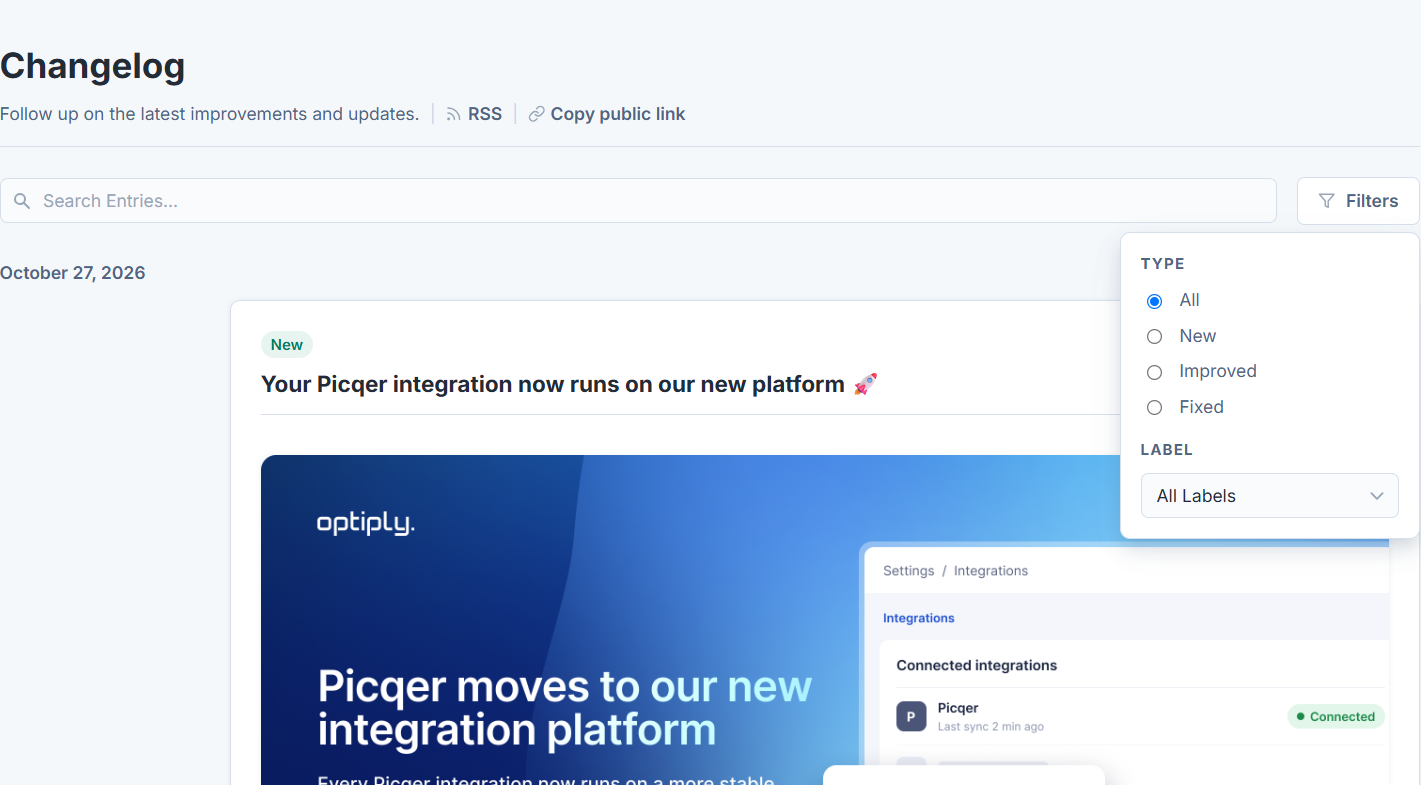
Example of the Changelog with Filters open. The update shown is an illustration, not confirmation that the feature is available in your webshop.
Expected result
You have found a relevant product update and know which HelpSite guide and webshop controls to check before using it.
Limitations
An update announcement does not necessarily mean the feature is available in your webshop. Availability can differ by webshop, edition, or user. The feedback platform determines its current sign-in, search, filter, and navigation options.
Errors and recovery
- The Changelog does not open: try the direct Changelog link and check whether your browser blocked the new tab. If it still does not open, contact Optiply support.
- A sign-in page appears: sign in using the options shown. If you cannot access the platform, contact support. Creating an account does not by itself confirm that you have access.
- An announced feature is not visible: check its HelpSite guide and the controls in the selected webshop. If availability is still unclear, contact support with the update title and the feature you are trying to use.
- Search or filters look different: use the controls currently shown by the external platform rather than expecting an exact match with the illustration.