

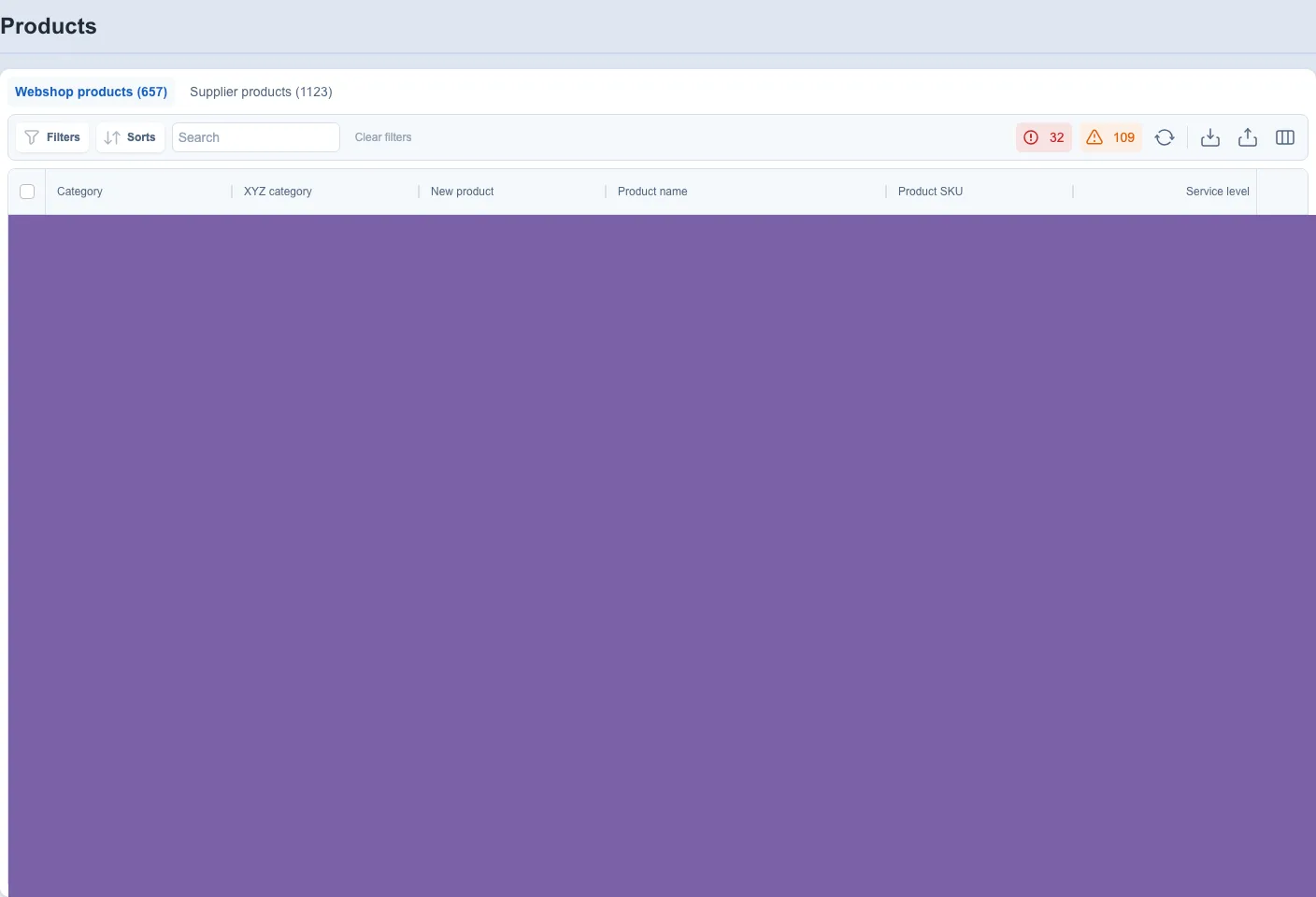
Example from an Optiply test webshop. The fields available in your table can differ.
Apply a filter
- Open a supported table, such as Purchase, Products, Suppliers, Deliveries, or Promotions.
- Select Filters.
- Search for or select the field you want to filter.
- Choose the condition and value offered for that field.
- Apply the filter. In the supported table filter panel, Enter in a filter field also applies it without submitting the surrounding page form. A focused button keeps its normal Enter action; this shortcut is not a promise for every older table or other form.
Filter controls differ by field type. A number, date, list, yes/no field, empty-value check, and text field can offer different conditions.
Repeat these steps to add more filters. Use the clear action in the Filters panel when you want to remove the current filters.
Choose visible columns
- Select the Column view table icon.
- Search for a column if needed.
- Select or remove columns.
- Drag selected columns to change their order.
- Select Apply.
Some tables show an Apply to all tables option. Use it only when the option is present; column layouts and saved views can be page-specific.
If a field or control is missing
Confirm that you are on the intended page and webshop. A missing filter, column, export, or apply-to-all option does not mean it is available on every other table.
Purpose
Use supported table controls to narrow records and create a reviewable column layout for the task you are completing.
Prerequisites
- Open the correct supported table and webshop.
- Wait for rows and available fields to finish loading.
- Decide which record criteria and fields are required.
Steps
- Open Filters, choose a field, condition, and value, then apply the filter.
- Add more filters when required and review the resulting rows.
- Open Column view, show or hide columns, arrange selected fields, and choose Apply.
- Complete the intended review, then clear filters or restore columns when needed.
Fields and columns
- Filter field, condition, and value — define which records remain visible.
- Visible columns and column order — define which record information the table presents.
Filter fields, conditions, values, visible columns, column order, and any available apply-to-all control determine the current table presentation. Exact options depend on the page and field type.
Expected result
The table shows records matching the applied criteria and the fields needed for the current review.
Limitations
- Filters and column layouts change presentation only; they do not edit records.
- Options differ by table, field type, permission, edition, and webshop.
- Apply to all tables must only be used where the interface offers it.
- The Enter shortcut applies to the supported table filter panel, not every form or legacy table; use its visible Apply control if needed.
Errors and recovery
- If no rows appear, clear filters and confirm the table and webshop.
- If a field is missing, check Column view, permissions, edition, and page support.
- If the layout is unsuitable, reopen Column view and adjust or reset it before continuing.