

Start with a question about the page you are viewing. Use this guide to rate an Assistant answer with thumbs up/down, add optional reasons, retry feedback saves, use arrow keys, Home and End on Chats, Plans and Jobs, and send chat messages with Enter/Shift+Enter or an input method (IME). It also covers conversation history and preferences. Availability depends on your webshop and access; follow the controls shown. Linked guides cover plans, scheduled jobs, files, Claude and Slack.
Quick start
Purpose
Use the Optiply Assistant to understand purchase advice, review your stock and suppliers, and ask questions about your selected webshop.
Prerequisites
Two things decide whether you can use the agent:
Your selected webshop. The Optiply Assistant must be enabled for the webshop you are using. If you don't see it, ask your Customer Success Manager or Optiply Support to check availability for that webshop.
Your AI assistant permission. Your shop administrator sets it per user in Optiply under Settings › Users, in the user's permissions, where it is called AI assistant, with No access (default), View or Edit:
- View: ask questions and get analyses. The agent doesn't propose or make changes for you.
- Edit: the agent can also propose changes, send emails and schedule jobs, each only after you approve.
The default is No access: until it is set to View or Edit, the agent isn't available to you. A shop administrator always has Edit, but still needs the Assistant enabled for the selected webshop.
On top of that, the agent always works with your own Optiply user permissions: even a user with Edit can only change what their user is allowed to change in the app (for example products or purchase orders).
An administrator role does not by itself enable the Assistant for a webshop. Assistant access is separate from external AI connections (MCP) and from which Home layout you see; enabling one does not establish the others.
Each conversation works with one webshop; switch webshop and start a new conversation to work with another.
Steps
Open the Assistant
- Open the floating opti button, or press Ctrl + J on Windows or Cmd + J on Mac.
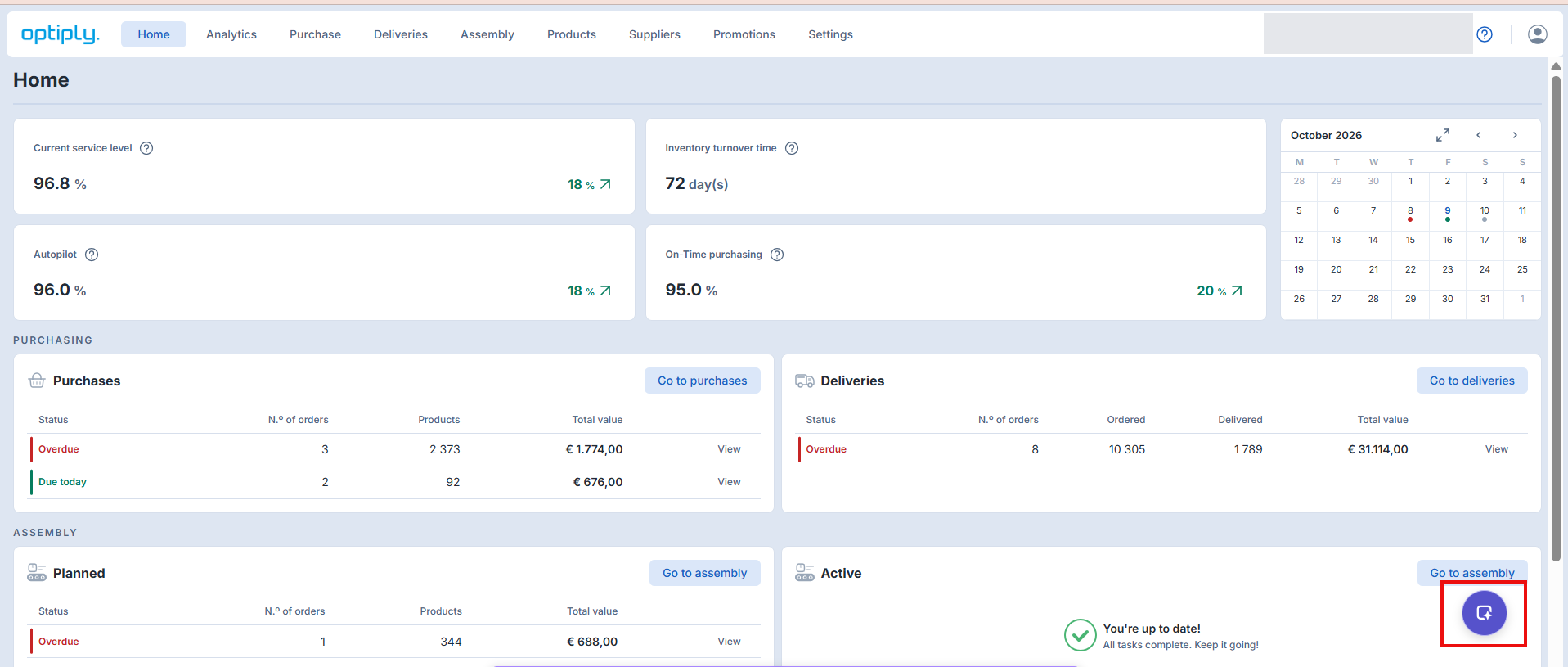
Ask your first question
- Choose a suggested question or type your own. On a product, supplier, supplier product, purchase proposal or delivery page, the Assistant can use that page's context.
- Try What's new? to explore its features, or ask a specific question such as Explain the proposed quantity for this product. For a broader question, name the product, supplier or period you want to review.
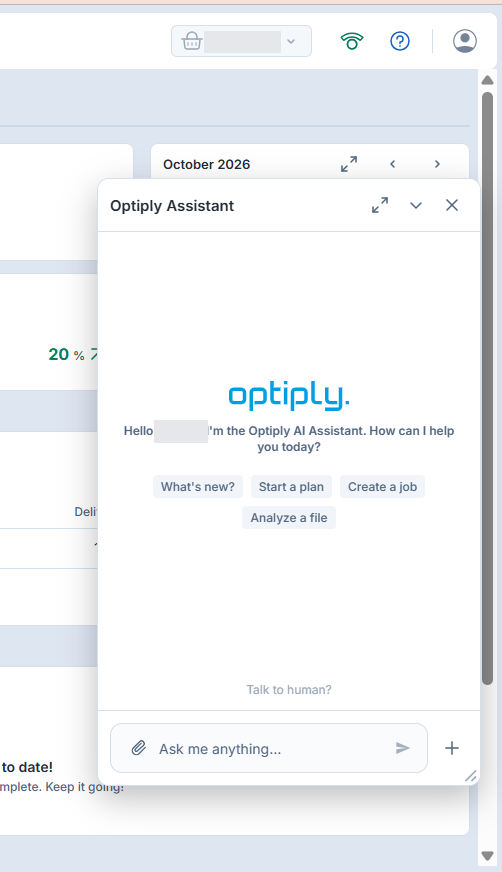
Wait for the answer
- Follow Working on it and the current step. Select Show reasoning to follow along.
- Read the completed answer. Open its Done line, such as Done · 3 steps · 41 sec, to review the work-step summary and elapsed time. Repeated steps can be grouped, and some background or failed steps are omitted; this is not a complete activity log. An in-progress message is not the finished answer, and Done alone does not confirm that a requested change was saved.
Continue the conversation
- Ask a follow-up question or choose one of the follow-up suggestions.
- To see your chats, plans and jobs, select Expand to full page. Select Collapse to return to the pop-up.
Workflow choices are shown only on the current last message when that message offers them. Sending a newer message or receiving an optionless continuation can remove earlier choices, even if those choices were on the most recent Assistant answer. Their disappearance does not confirm that a workflow finished or that an action was saved. Read the current reply and verify any requested action's result.
The screenshots show an example conversation. Review the answer's figures and context before using it to make a decision.
Fields and columns
| Control | Meaning |
|---|---|
| Chats | Previous conversations, with a title and date. |
| Plans | Guided projects with saved progress. |
| Jobs | Scheduled questions and their run history. |
| New Conversation | Starts a fresh chat. |
| Load more | Shows older conversations. |
| Done · steps · time | Open the work-step summary and elapsed time; this is not a complete activity log or confirmation of saved changes. |
Expected result
The assistant gives an answer, its reasons and a suggested next step. You can continue the conversation with follow-up questions or reopen it from your history.
Limitations
The assistant works with your own permissions and one webshop per conversation. To work on another webshop, switch to it in Optiply and start a new conversation. Changes require your approval; a proposal is not a completed change. A hidden entry alone does not diagnose a backend authorization error.
Errors and recovery
If the latest answer fails, use Try again or Retry, where offered, to send your last message again once the Assistant is no longer answering. Older failed answers are not retry controls. Before repeating a request that could change data, check its current result; an error or a retry button does not prove that nothing changed or that repeating it cannot duplicate an action. If the assistant cannot finish a long question, choose whether to Continue or Escalate. If the assistant is missing, ask your Customer Success Manager or Optiply Support to check availability for the selected webshop, and ask your shop administrator to check that your AI assistant permission is set to View or Edit. A hidden entry alone does not diagnose a backend authorization error.
What the Assistant can help with
The Assistant works inside your Optiply account:
- Your Optiply data. Answers use products, suppliers, stock, sales, purchase orders, deliveries, promotions and figures calculated by Optiply's purchasing algorithm. If a figure isn't available, the Assistant should make that clear rather than inventing a value.
- Checks and explanations. It checks for issues such as empty results, the wrong period or inconsistent values. When it calculates a number itself, it explains how. When it uses Optiply's nightly figures, it gives their date and warns if they are more than two days old.
- Plain-language answers. Answers include the result, reasons and a suggested next step. Lists of three or more items use tables, and long lists show the top 10 with the total count.
- Approval before changes. Review what will change before selecting Yes. Asking a question is not approving a change, and a proposal is not confirmation that the change was completed. Check the result afterward.
- Your preferences. The Assistant can adapt its replies and remember preferences with your permission.
The Assistant can misread a question. Check important figures, periods and proposed changes before acting on them. It does not replace your Optiply settings or the purchasing algorithm.
Other ways to open and use the Assistant
Where to find it
- The floating "opti" button, where offered, opens the assistant in a pop-up window. It can be hidden while the popup is already open or on the full Assistant page. You can drag and resize the window, minimise it, or close it. Closing or minimising it doesn't stop your chats: they keep working in their tabs (see Several chats at once below).
- Keyboard shortcut: Ctrl + J (Windows) or Cmd + J (Mac) opens and closes the assistant.
- Full page: click Expand to full page in the pop-up header to open the assistant page. It has your history and three tabs: Chats, Plans and Jobs. Collapse takes you back to the pop-up.
- "Ask AI assistant" buttons in the app start a conversation about the page you're on:
- Settings › Assortment categorization (ABC and ABC-XYZ): help to simulate and set your category thresholds.
- Settings › Service levels: help to simulate and set your desired service levels.
- Settings › Integrations / sources: an explanation of your current integration setup.
- Settings › Workflows: an overview of the workflows you have and what each one does.
- Product details (supply-chain information): why the product gets the purchase advice it does.
- Purchase proposal › order line quantity: why the proposed quantity for a product is what it is.
- The ✨ help next to fields when importing data or connecting a new source explains what a field means, how Optiply uses it and where to find it in your system.
It knows what you're looking at
When you open the assistant on a product, supplier, supplier product, purchase proposal or delivery page, it already knows which item you mean. The first suggestion names it (for example "Supplier Acme BV"), so you can ask "why is this one late so often?" without explaining what "this" is.
Starting a conversation
A new chat offers suggestions such as What's new?, Start a plan, Create a job and Analyze a file. After each answer, the agent offers up to three follow-up suggestions you can click.
While it works, you see Working on it with the step it is on, and Show reasoning lets you follow along. Open Done · steps · time to review the grouped work summary and elapsed time, including any more count. The summary can leave out background or failed steps; it is not an exhaustive activity log or proof that every requested change succeeded.
If the latest answer fails, Try again or Retry resends your last message where offered. Check the result of any data-changing request before repeating it; older failed answers cannot be retried from their old controls.
When shown, selecting Talk to human? displays a reply with a Support Center link. Select that link to open Support Center. Selecting Talk to human? does not automatically open Support Center or submit the support-message form, and does not start a live chat.
Several chats at once
Where chat tabs are shown, each chat has its own tab in the pop-up and on the full page. Select a tab to switch without closing the others; + opens or focuses a new empty chat. The row shows up to four tabs, fewer in a narrow window, with remaining chats under +N. The active tab stays visible. Resolve on a homepage alert with an already-open chat returns to that chat instead of starting another. Each tab shows its status:
- Working: the agent is writing an answer. You can switch tabs; it keeps running.
- Needs approval: the agent proposed a change or asked you a question, and waits for you.
- Answer ready: an answer finished while you were in another tab, and you haven't read it yet.
- Couldn't finish: the last answer failed.
- Done / Open chat: return to the conversation and read its reply. Done is a chat status, not confirmation that a business change succeeded; it can also follow a declined proposal.
When the pop-up is minimised, its title bar sums up your chats, for example "1 working · 1 waiting for you", and the floating "opti" button shows how many chats need you. Opening the assistant then takes you to the most urgent chat first. Close a tab with ×. A Working tab asks Stop and close? first; choose Keep open or dismiss the question to leave it running. Closing a chat tab stops its local answer stream, but does not establish that a server action was cancelled, rolled back or removed from saved history.
The open-tab list—not message content—is remembered for this browser tab and webshop so it can reopen after a reload. Restoration is not guaranteed when browser storage is blocked or unavailable, and this is not cross-browser history. Reopen earlier conversations through history rather than relying on the open-tab list. Closing or minimising the Assistant window is different from closing an individual chat tab.
With focus on a visible chat tab, Left/Right Arrow switches tabs, Home/End selects the first/last visible tab, and Delete requests closing it, with the same confirmation for a Working chat. These are separate from the top-level Chats / Plans / Jobs controls below.
Needs you: alerts on your homepage
With the new homepage switched on for your account, the Needs you panel lists what the agent found in your data that deserves attention. It checks every morning after Optiply's nightly calculation, and follows the changes you make during the day when you look at it. Overdue purchase orders and overdue planned orders are brought up to date whenever you open the homepage or the alert, so they match the orders listed behind them. The other alerts about your data in Optiply, such as missing lead times or prices, negative stock, or products that are out of stock or have no supplier, are checked again when you open the homepage and they are more than an hour old; the updated alerts show the next time you open the homepage or return to it. Alerts based on the forecast and service levels change only with the nightly calculation. These two alerts cover orders up to 90 days late; older ones move to the old open orders and old planned orders alerts under Settings & data. That is why the Deliveries and Purchase overviews on the homepage, which count every overdue order, can show a higher number.
- Four groups. Losing sales (products out of stock with nothing on order, products with expected demand but no supplier, availability below your target), Orders & suppliers (overdue planned orders and deliveries, lead times that don't match your deliveries, suppliers whose orders are often completed late or incomplete), Stock & cash (more stock than your settings need) and Settings & data (missing lead times, reorder periods and prices, negative stock, sale prices that don't exceed the purchase price, items that look like costs rather than products, and old open orders to close). Settings & data starts collapsed: it matters, but it is rarely today's emergency, and it is never marked Urgent.
- The figure at the top is the total of the Losing sales cards, shown in red: your expected missed sales on products that are out of stock with nothing on order (before new stock can arrive) plus those on products without a supplier (over the next 30 days). Amounts in the other groups, such as money tied up in stock or in late orders, are shown in grey on their own cards and are never added to it. Cards marked Urgent are the ones to look at first: a card is Urgent only when its own figures say so, such as an order more than a week overdue, or at least €500 of expected missed sales. When Optiply can only value some of a card's products, the amount says so, for example "(4 of 6 products)". A product whose expected missed sales would be more than your whole shop sold in the last 12 months is left out of the amount: such a figure comes from unlikely product data, such as a pack priced as a single unit. It stays in the list, asking you to check its unit, sale price and demand. The same goes for a planned order whose advised value is more than your shop sold in the last 12 months: the supplier stays listed with its units, and the value is left out with a note to check that its purchase prices and order quantities use the same unit (for example a price per 25 kg bag with quantities in grams). An amount of zero, which means orders or products without a price, is not shown as €0.
- Select the alert title for the details: why it matters, the suppliers or products involved, and the count with its displayed label. In the current detail layout, this count replaces the older Open since tile. Open How it's counted under Why this matters to see what the card counts, over which period, what it leaves out and how its amount is made. Products are listed with their SKU and EAN when Optiply has them, and a card that names a product adds its SKU.
- Suppliers often late or incomplete are judged on two things: whether orders were completed on time, and the share of ordered units delivered. When none of a supplier's recent orders has a registered delivery, Optiply can't tell what arrived, so that supplier is judged on time only and the card says so.
- Old open orders to close. A purchase order more than 90 days past its expected delivery date, or a planned order more than 90 days overdue, is almost always something to clean up rather than chase: an order that was delivered or cancelled but never closed, or an order agenda nobody follows. These are left out of the overdue cards under Orders & suppliers and listed on their own cards in Settings & data instead, never marked Urgent. Close the orders that were delivered or cancelled, and skip or replan the old planned orders: an open order still counts as stock on its way until it is closed. For planned orders, a supplier's earliest overdue order decides which card it is on.
- Overdue planned orders show, per supplier, the units and value of the order that is due, as on the Purchase page. A preponed, backorder or lost-sales order is marked as such in the Type column. When Optiply has no total yet for a backorder or lost-sales order (the Purchase page then shows 0), its amounts stay empty: click the supplier to see the products to order. A planned order due today whose order time has passed shows as overdue today.
- Resolve opens the assistant in a conversation about that card. The agent first re-checks the alert on today's data (the card can be a few hours old), explains what's going on, and proposes the fix, such as a lead-time update or an order. Any change still needs your approval. Ask for the full list and the agent goes through every affected item, not only the examples on the card. On a card with several suppliers you can also resolve one supplier from the details panel: the conversation then stays on that supplier, and only its part of the card is closed when it is solved. Hover over Resolve to see what the assistant will do for that card. Once a card's chat is open, its Resolve button shows how that chat is doing (Working…, Needs approval, Answer ready, Couldn't finish, Done or Open chat), and clicking it takes you back to that chat instead of starting a new one. When the chat finishes, the homepage checks the card again. When the issue is solved, the card moves to Handled.
- Handled, with Last 24 hours beside it, covers a rolling 24-hour window, not since midnight. It lists one entry per handled alert and one entry per chat. A chat shows its name, or Chat plus its time when unnamed, with what was done underneath: Updated 4 suppliers: lead time is one chat entry, not four. The x of N handled count uses the same window but counts whole alerts, not chats or suppliers. See more opens the alert, or for a chat entry the conversation itself—own conversations only. See Home dashboard tasks for the activity details and recovery.
- Use More actions (⋯) on the card or in its details for the offered Mark as done, Dismiss and Mute choices; Resolve remains separate. Labels and available choices can differ by alert and access. Dismiss hides a card; it comes back only if it gets clearly worse, for example a quarter more products or a new supplier. Mark as done (Mark as resolved in an earlier layout) closes a card you fixed yourself; if Optiply still finds the issue from the next day, the card comes back. Depending on your permissions you can also Mute an alert you consider normal for your business, so it stops appearing. Muted and dismissed alerts are under the available Manage alerts or earlier Manage insights control. Read the list heading and its restore or unmute choice. A successful dismiss or immediate whole-alert mute can offer a brief Undo; a deferred mute keeps its notice instead. Handling an alert does not certify that its underlying cause is fixed. See Home dashboard tasks for scope, progress counts and recovery.
- Nothing needs you today! means the agent found nothing to flag. Not computed yet shows for a webshop that hasn't been checked yet; look again a little later.
Keyboard navigation and messages
On the full Assistant page, move focus to the Chats, Plans or Jobs tab. Left Arrow and Right Arrow select the previous or next tab, wrapping at either end; Home selects Chats and End selects Jobs. Use Tab to continue into the selected tab's controls. In Jobs, the question button is separate from Pause, Resume and Delete.
When typing an Assistant message with an input method editor (IME), Enter confirms active composition instead of sending the message. Outside composition, Enter sends when you are not holding Shift; Shift + Enter keeps a line break. Labels, prompts and errors follow the app's language; a translated label does not guarantee the language of an Assistant reply.
A generic message such as Failed to load notes or Failed to load jobs does not identify the cause. Confirm the selected webshop, review the current state, and use the available retry or reopen the relevant view. If an update or deletion reports failure, check whether it took effect before submitting it again; use the normal support route if the problem persists.
Conversation history
On the full assistant page, Open groups your open chat tabs and Earlier lists other conversations with a title and date, where this sidebar layout is offered. Already-open chats are not repeated in Earlier. Select an open chat to return to its current session, or an earlier conversation to continue it. Use Load more for older conversations and New Conversation for a fresh chat. Availability and labels can differ; follow the controls shown.
Managing your preferences
On the full Assistant page, select Preferences to open Memory. You can review the entries the Assistant remembers and use Edit or Delete for an entry. The example below shows a language preference, not a required setting for every account.
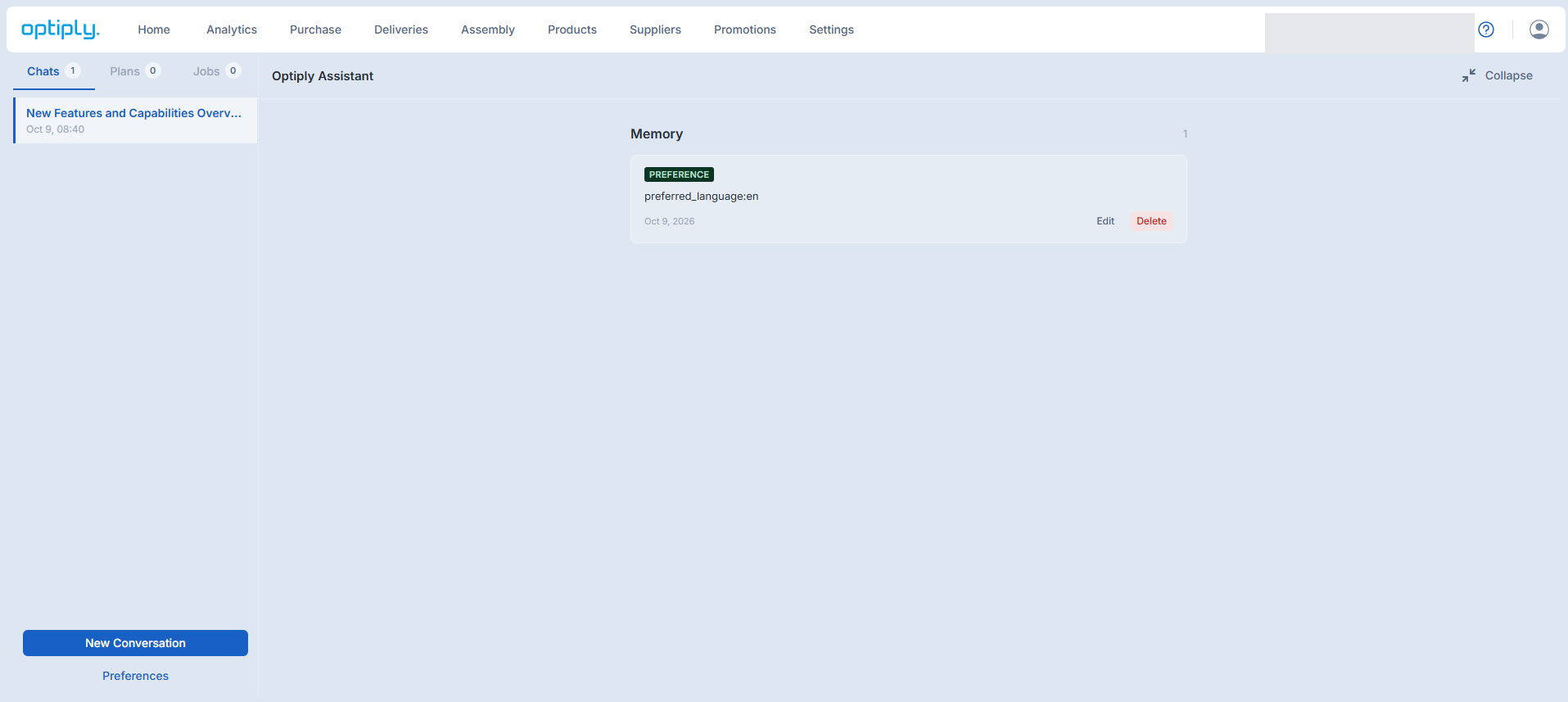
When editing an entry, review the text before choosing Save, or choose Cancel to leave the edit without saving. The screenshot shows the edit form, not a completed update.
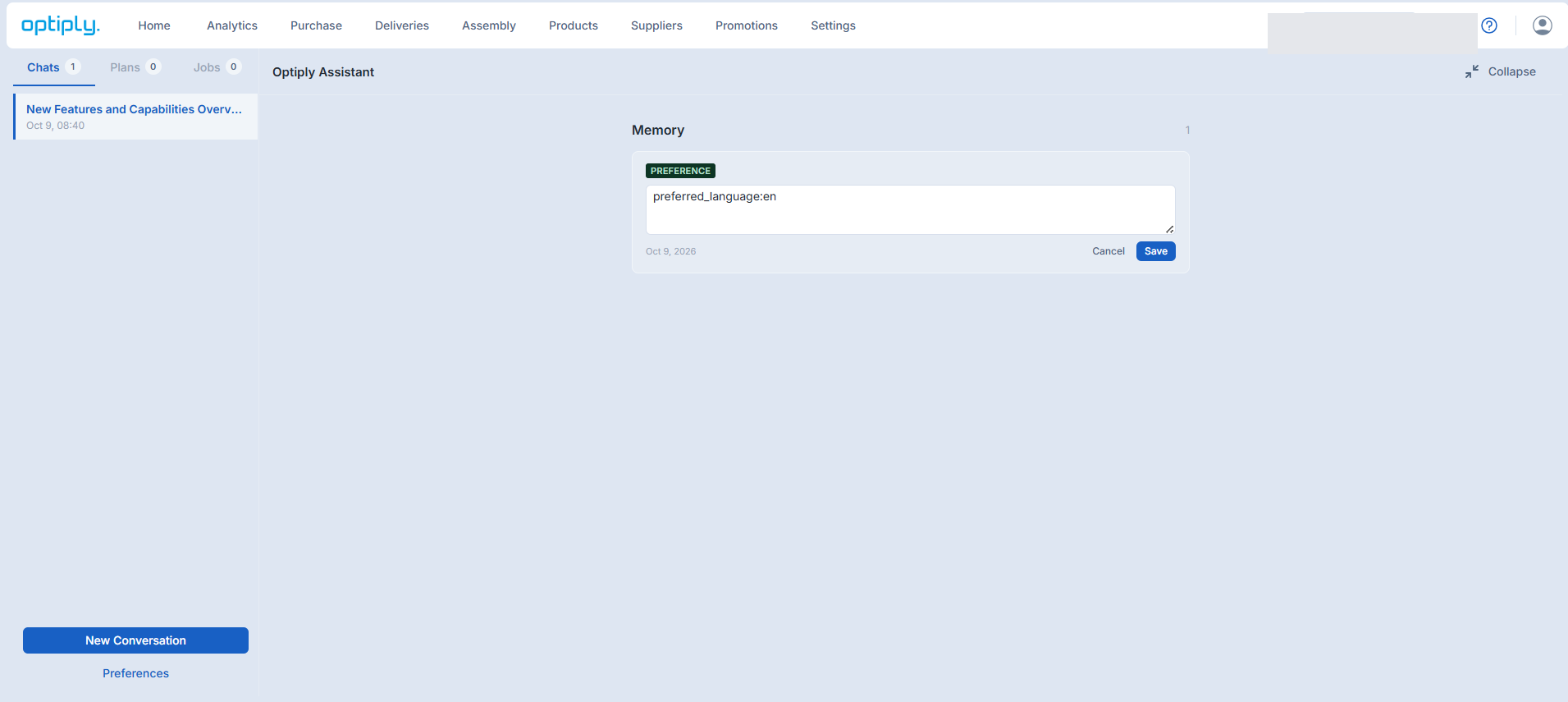
For approval, privacy and retention details, read Memory, privacy, permissions and limits.
Long and complex questions
Most answers take seconds. A deep analysis across many products or suppliers can take longer:
- If the agent needs more than about 2.5 minutes, it checks in with a short progress update and keeps going. In the Optiply app this happens automatically.
- After several automatic rounds, it asks whether you want to Continue or Escalate, and tells you what it has found so far. If you continue, it focuses on giving you the best answer from what it has gathered, and says what it could not confirm.
- If it still can't finish, it offers to hand the question to an Optiply expert with everything it found so far.
- A reply too long for one message, such as a long list pasted as text instead of a file, comes in parts: the agent says which part you got, and you ask for the next one.
Help articles, integrations, support and feedback
- How-to questions. The agent answers questions about how Optiply works from the articles on help.optiply.com, and lists the articles it used under Sources so you can read more. When you ask how to change something it can change for you, it offers to do that first (see Approve changes and orders).
- Integration sync status. Ask "did my orders sync?" or "when did my stock last update?" and the agent checks your integration's recent sync runs, any failures and when the next run is, in your local time. For custom or file-based integrations, it explains what to check on your side.
- Workflows. It can list your Optiply workflows and how their recent runs went.
- Support tickets. If something is wrong in Optiply, such as a stock mismatch, an order that didn't sync, unexpected purchase advice or a bug, the agent creates a ticket for Optiply Support and gives you the ticket number. It creates at most one ticket per conversation per day. When you give more details afterwards, or a later check changes the picture, the agent adds them to that ticket as a note for support, also from a later conversation, and tells you once they are added; your chat messages themselves do not reach the support team. If your webshop already has a recent ticket about the same kind of problem, the new ticket is linked to it so support can handle them together.
- Integration problems go to the integration specialist first. When an integration problem in the chat is one the agent can't solve, such as an order that didn't sync to your ERP, it first asks Optiply's integration specialist, who can look at the sync jobs and your connected system. The agent tells you it has asked, and the answer appears in your conversation, usually within a few minutes. A support ticket is created only when the specialist's check calls for one, or when no answer comes within 30 minutes. This applies in the Optiply app; in Claude or Slack the agent creates the ticket straight away.
- Expert follow-up. If the agent gets stuck, it brings in an Optiply expert. When the expert responds, the agent continues your conversation with their guidance.
- Feature requests. Tell the agent what you'd like Optiply to do. It records your request on the Optiply feedback portal, or adds your vote if someone already asked for it. It never promises delivery dates.
- Feedback on answers. Use 👍 or 👎 where offered under a completed answer. Selecting a thumb requests saving immediately; the reason/comment after 👎 is optional. Closing that form keeps the rating. See Rate an Assistant answer below for removing a rating and retrying a failed save. The Optiply team reviews this feedback to improve the agent.
- What's new. Ask "What's new?" to see the latest improvements to the agent and a tour of what it can do.
Rate an Assistant answer
Purpose
Tell the team whether a completed answer was helpful, optionally explain a thumbs down, or remove a selected rating.
Prerequisites
Wait for the answer to finish and use its feedback controls where offered. Feedback is not an approval for a business change and does not correct the answer or rerun the request.
Steps
- Select Thumbs up or Thumbs down under the completed answer. Saving starts on that click; wait for it to finish before trying another rating.
- After thumbs down, optionally choose a Reason, write a Comment, or both. To send those details, select Submit. A reason alone or a nonblank comment alone is enough; an empty submission asks you to choose a reason or write a comment.
- If you do not want to add details, select Close or use Escape when the form's current control has not already handled it. This closes the optional form and returns focus to thumbs down; it does not remove the rating.
- To remove a rating, wait for saving to finish, then select the already selected thumb again. Review the result rather than assuming that an icon change confirms a saved change.
Fields and columns
- Thumbs up / Thumbs down — the answer rating; selecting the same thumb again requests its removal.
- Reason / Comment — optional follow-up detail after thumbs down. Submitting detail requires at least one of them.
- Feedback saved / Thanks! — confirmation shown for the rating or the submitted detail where applicable.
Expected result
The selected rating or submitted detail is confirmed in the feedback control. Closing the optional form leaves a successfully saved thumbs down in place.
Limitations
Feedback controls are not offered while the answer is streaming or for every error message. Repeated requests are ignored while that answer's save is pending. Feedback does not establish that a business action completed or that a later answer will be correct.
Errors and recovery
If Couldn't save feedback appears after a rating request, the previous selection is restored; check it and try again after saving has stopped. If saving optional detail fails, the thumbs down and form remain so you can review the detail and retry. Do not assume failed detail removed the rating. If the problem persists, use the normal support route.
Languages
The agent speaks English, Dutch and Spanish. It detects your language automatically, switches when you ask ("answer in Dutch, please") and remembers your choice. Supply-chain terms such as SKU, EAN and lead time stay in English.
Go further
- Analyze purchasing, stock and suppliers with the Optiply Agent
- Work through plans with the Optiply Agent
- Approve changes and orders with the Optiply Agent
- Use files, exports and charts with the Optiply Agent
- Schedule jobs and email reports with the Optiply Agent
- Optiply Agent memory, privacy, permissions and limits
- Connect the Optiply Agent: MCP and Slack setup