

Do not treat Product and Supplier-product identifiers, SKUs, prices, or stock values as interchangeable.
Open Supplier products
Open Products, then Supplier products where that route is available. Supplier access is required.
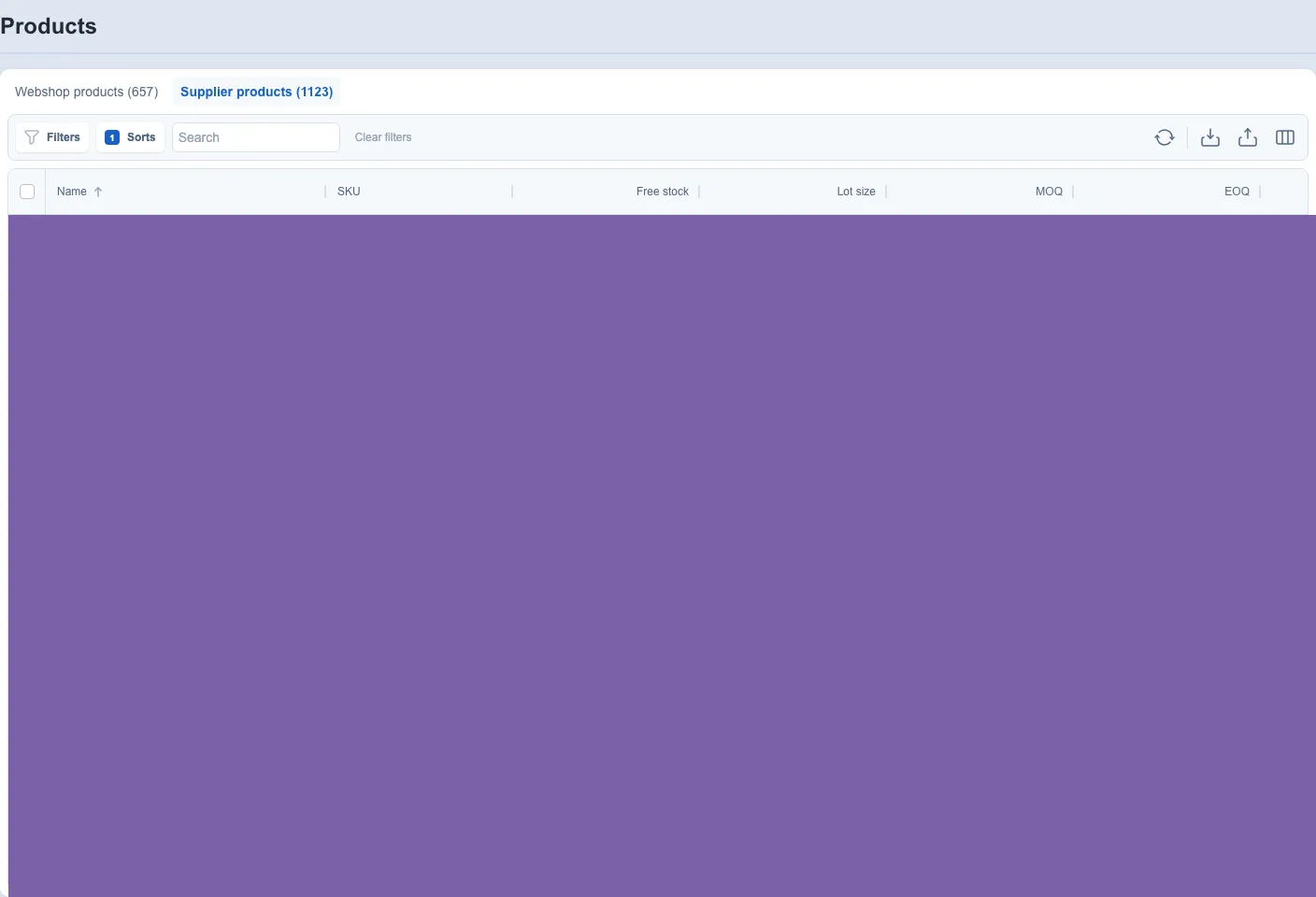
The table supports filters, sorting, Supplier products search, Clear filters, refresh, column configuration, and pagination. Row selection is available for supported table behavior and currently has a 200-item limit; selection alone does not imply a bulk edit action.
Select a row to open its Supplier-product details.
Supplier-product fields
Available columns can include:
- supplier-product name, SKU, EAN, and article code;
- active, preferred, recommended, and availability states;
- Lot size, MOQ, and EOQ;
- supplier stock, free stock, or stock position where supplied;
- Product lead time and availability date;
- base, supplier, cost, discount, or secondary-currency prices;
- weight and volume.
These fields describe different concepts. For example, availability is not the same as stock on hand, and a Preferred supplier is not automatically the system-recommended or currently Active supplier.
See Choose a single- or multiple-supplier strategy and Use supplier stock.
Import, export, and refresh
Where Imports is enabled, the upload action opens the Supplier-product import entry point. It can be disabled while an import job is running. Detailed templates, identifiers, validation, and update ownership belong to the Imports and exports workflow.
Where Exports is enabled, the download action opens the Supplier-product export dialog. See Exports.
Use Refresh when you need to load the latest available table data.
Supplier-product details
The detail header shows the Supplier-product name and can show a Preferred badge. The currently visible detail route contains the Information tab. A Discounts route that is not visible in the interface is not documented as an available customer tab.
Information can include supplier-specific identity, availability, stock, purchasing quantities, lead time, dimensions, and prices. The exact editable fields and ownership depend on permissions, account configuration, and the connected source.
To add or edit the relationship from a Product, see Connect products with suppliers.
Find and organize Supplier products
Purpose
Narrow the Supplier products table and identify the correct Product-Supplier relationship before opening, importing, exporting, or editing it.
Prerequisites
- Open Supplier products with required Product and Supplier access.
- Confirm the current webshop.
- Know a Product, Supplier, SKU, EAN, or relationship characteristic.
Steps
- Enter search text and apply relevant filters and sorting.
- Choose visible columns when more relationship context is required.
- Review matching rows and select only intended records where supported.
- Open the relationship or choose the appropriate import or export task.
- Clear search and filters and verify the unfiltered list.
Fields and columns
- Product, Supplier, SKU, and EAN — identify the relationship.
- Price, MOQ, lot size, availability, preference, and lead time — describe purchasing behavior where available.
Product and Supplier names, identifiers, price, MOQ, lot size, availability, active or preferred state, and lead time can be available depending on configuration.
Expected result
The intended Supplier-product relationship is visible and can be opened or used by the next supported task.
Limitations
- Supplier-product records are relationships, not generic Product or Supplier profiles.
- Available columns and actions depend on permissions and relationship state.
- Table selection or layout changes do not save purchasing fields.
Errors and recovery
- If no record is shown, clear search and filters and confirm both identifiers.
- If details cannot open, verify relationship access and that the record exists.
- If a relationship is missing, use the connection workflow instead of creating duplicate generic records.